

Cette page n’est pas encore traduite en français. Vous lisez la version anglaise.
The calendar and bookings
Your day at the desk: see every court, take a walk in booking, cancel a booking, and find or export any booking.
Two pages cover bookings. Calendar is for the day in front of you: it shows one venue for one day and is the fastest way to take or cancel a booking. Slot Bookings is the full list, with filters and exports.
Calendar#
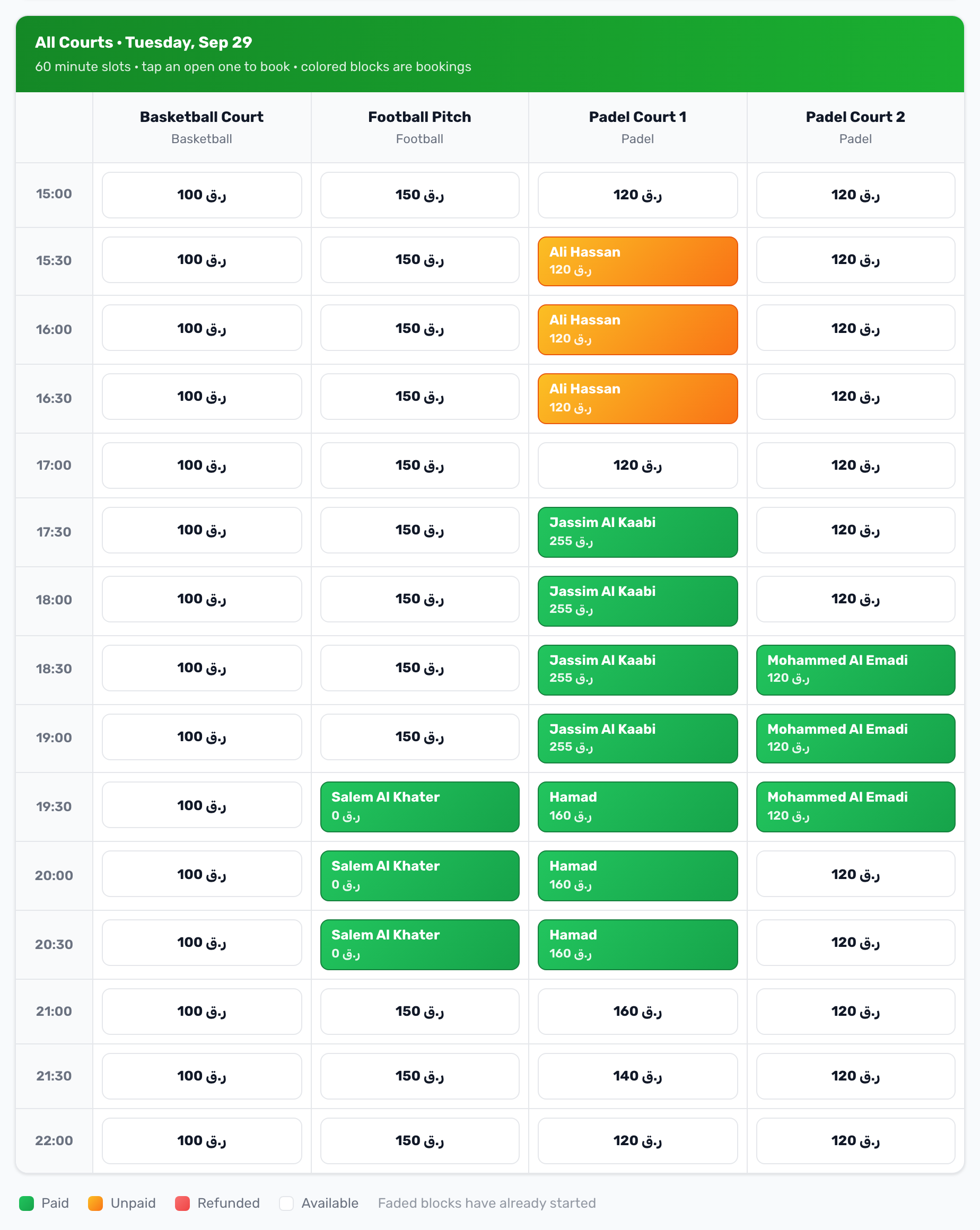
The Court Calendar shows the courts of one venue side by side for one day, with the start times down the side.
- Use the arrows, Choose date or Today to move between days.
- Pick the venue with the chips at the top.
- Pick the length with the duration chips. A court that does not offer that length shows a dash.
Each open time shows its price. A booking shows the customer's name and the booking total, in a colour for its payment:
| Colour | Legend | Meaning |
|---|---|---|
| Green | Paid | The booking is paid. |
| Amber | Unpaid | Not paid yet. |
| Red | Refunded | The payment was refunded, in full or in part. |
| White | Available | Open to book. |
Times blocked by a schedule override show Closed. A booking that has already started stays on the calendar, faded, so you can still open it.
In the 60, 90 and 120 minute views a start time is offered every 30 minutes, so one booking can show across several rows. Switch to the 30 minute view to see each booking once.
Take a walk in booking#
-
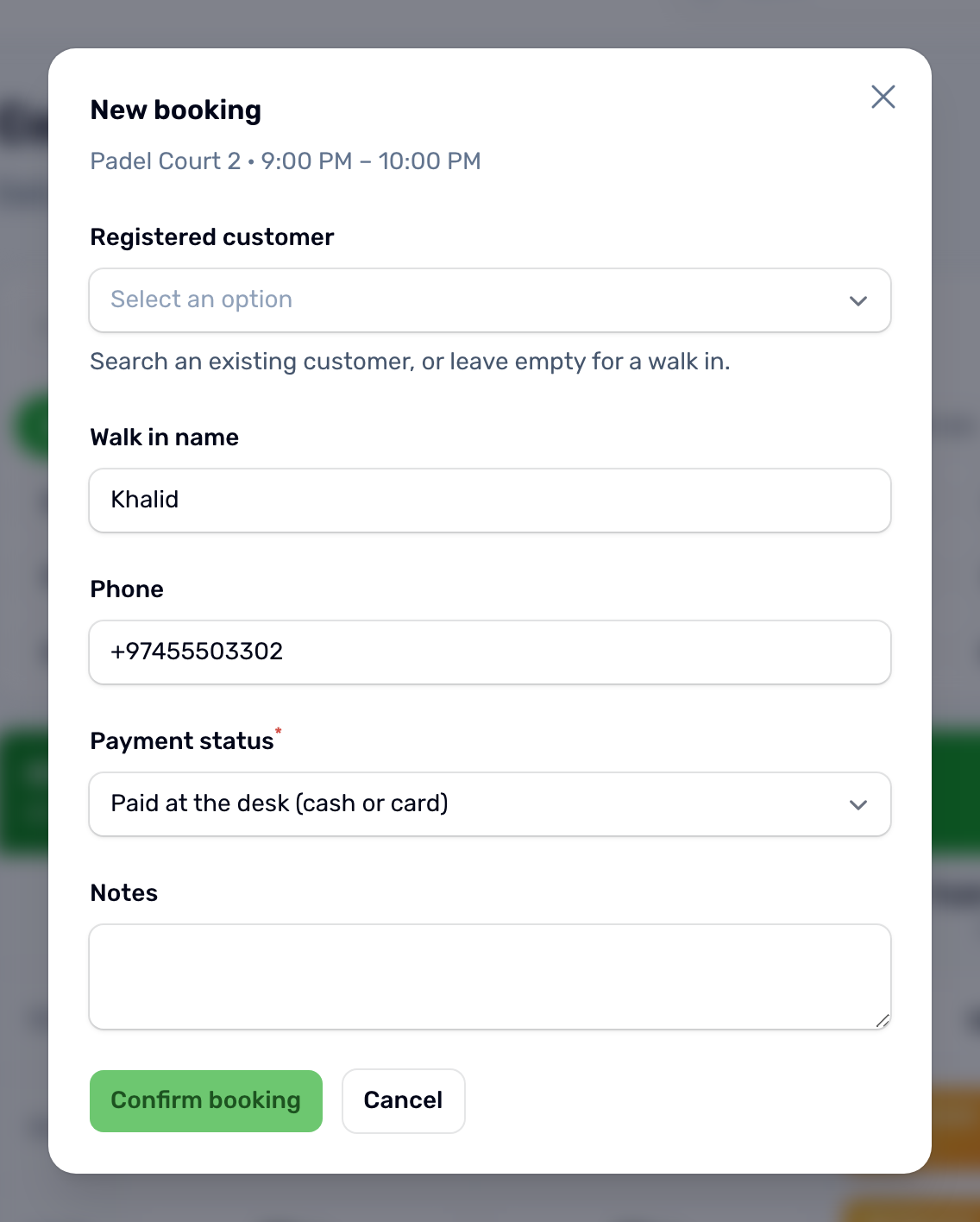
Click an open time
The New booking window opens with the court and the time. -
Choose the customer
Search a Registered customer by name, phone or email, or leave it empty and type the Walk in name and an optional Phone. -
Set the payment
Choose Paid at the desk (cash or card) if they already paid, or Unpaid, pays at the venue if they will pay later. There is no default, so you always choose. Add Notes if you need to. -
Confirm booking
The booking is created as Confirmed, at the court's price for that time.
Paid here is a label for your records. No money moves through the app and no payment record is created. An unpaid booking taken here keeps its slot until you cancel it. It is never released for not being paid. Only bookings that are paid and belong to a registered customer get the app's reminders.
Cancel a booking#
-
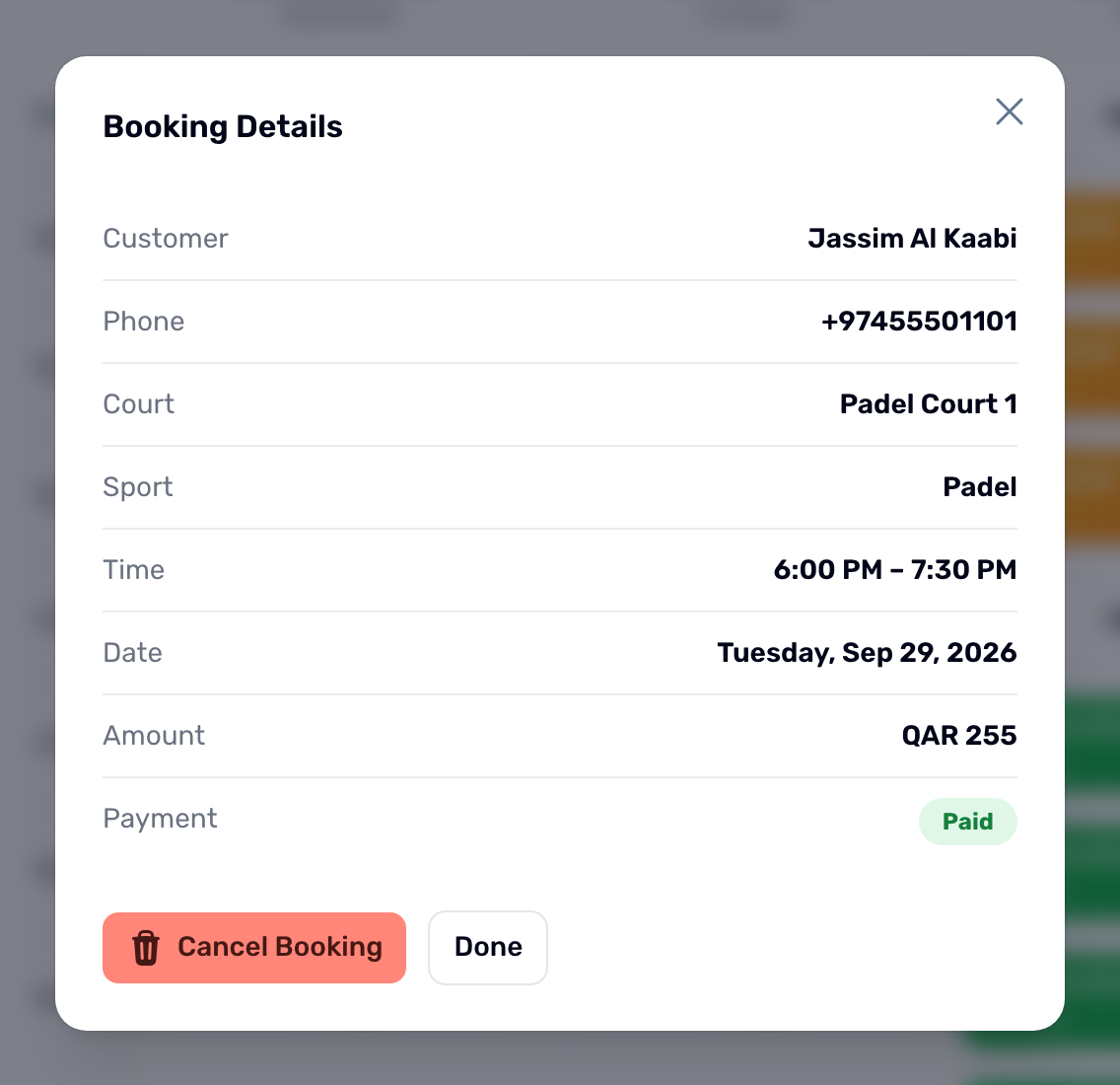
Click the booking
Booking Details shows the customer, phone, court, sport, time, date, amount and payment. -
Cancel Booking
Choose the refund, add a reason if you like, and confirm. The slot becomes available again at once.
For a paid booking you choose the refund: By the cancellation policy, which shows the amount it gives right now, Full refund, A chosen amount, or No refund. It goes to the customer's wallet. The customer gets a Booking cancelled notification that says the club cancelled it and states the refund.
Report#
Report downloads the day's bookings for the venue as an Excel workbook or a CSV file, with the time, court, sport, customer, phone, payment and amount, in the language you use the portal in.
Slot Bookings#
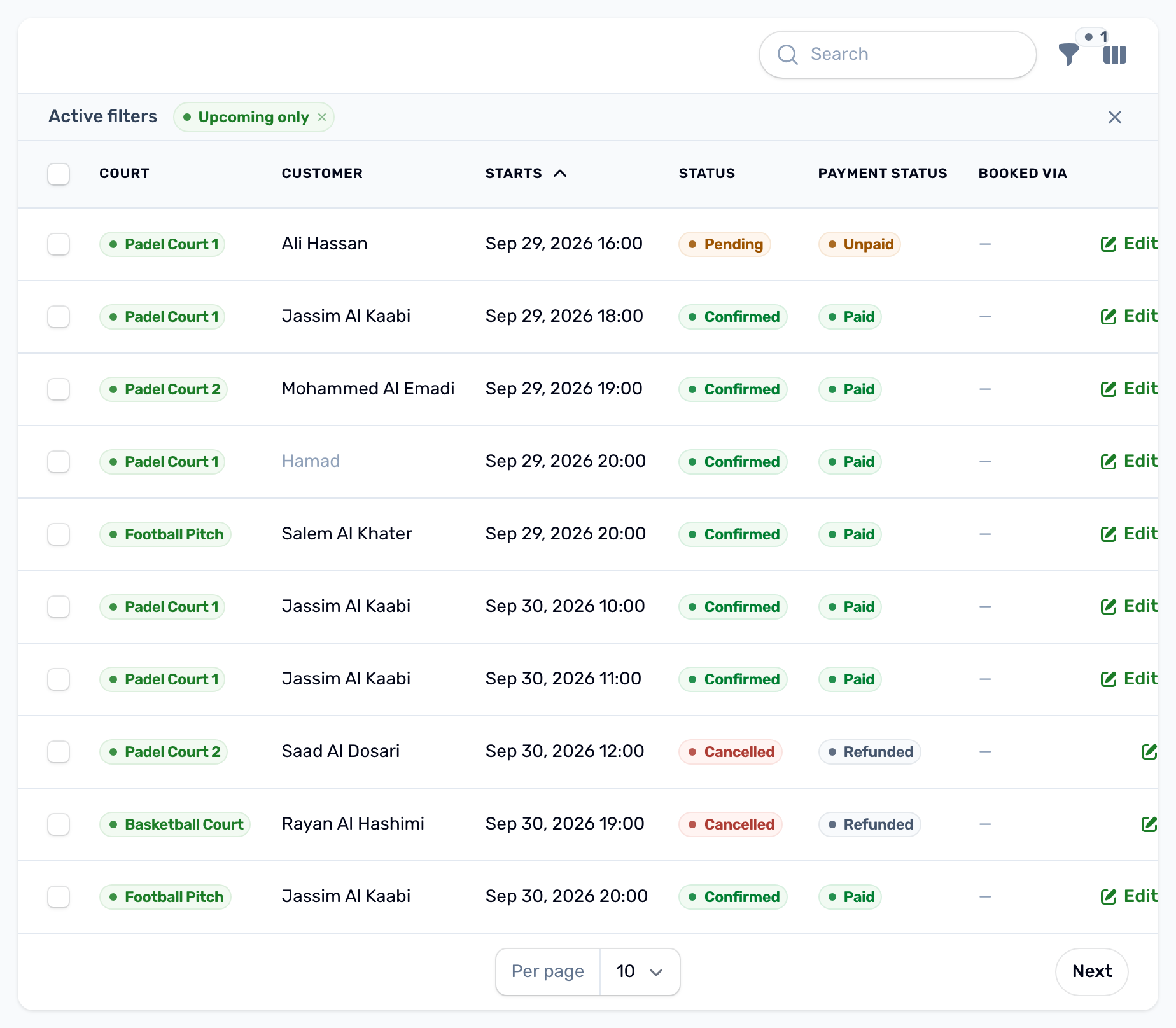
Slot Bookings lists every booking, newest start first. The red number next to it in the sidebar counts bookings that are still Pending.
- Columns: court, customer and phone, start, duration, price, how the price was worked out, status, payment status and Booked via.
- Filters: court, status, payment status, Upcoming only, a date range of up to 31 days, and Source.
Statuses#
| Status | Meaning |
|---|---|
| Pending | Created and waiting for payment. Holding its slot. |
| Confirmed | Paid, free, or booked by staff. |
| Cancelled | Cancelled by the player, by staff or automatically. The slot is free. |
| Completed | Set by staff by hand. |
| No show | Set by staff by hand. |
The payment status is Unpaid, Paid, Refunded or Partially refunded. The full list is in Booking and match statuses.
New booking from the list#
New opens a longer form: the court, a registered user or a walk in name and phone, the date, one of the court's booking lengths, and the Available time, which lists the court's open times with their prices. Leave Price empty to use the court's prices, or type one to set it by hand.
Editing#
Edit changes the details, the time, the payment status and the notes. Moving a booking to another court, day or time is checked like a new booking, so it cannot land on a taken or closed time. Cancelled is not in the status list: use Cancel booking at the top of the booking or in its row. It frees the slot, refunds and tells the customer. Delete moves a booking to the trash only once it holds no slot and no money, and asks for your login PIN. An active or paid booking is cancelled, never deleted.
Export#
Export report downloads an Excel file for a window of up to 31 days, filtered by status and payment status. It lists each booking with its court, customer, times, slot price, add ons, total, source, status and payment.
Bookings sold by another app#
When your courts are also sold through a partner app, those bookings show in Slot Bookings with the selling app under Booked via. Use the Source filter to see only those, or only your own.