
Cette page n’est pas encore traduite en français. Vous lisez la version anglaise.
Opening hours, closures and free slots
When each court can be booked, how to close it for maintenance or a holiday, peak hours, and free times you give away.
Each court keeps its own week on the Schedule tab of the court editor: working hours, peak hours and free slots. Closures and special prices for particular dates are kept separately in Schedule Overrides.
Working hours#
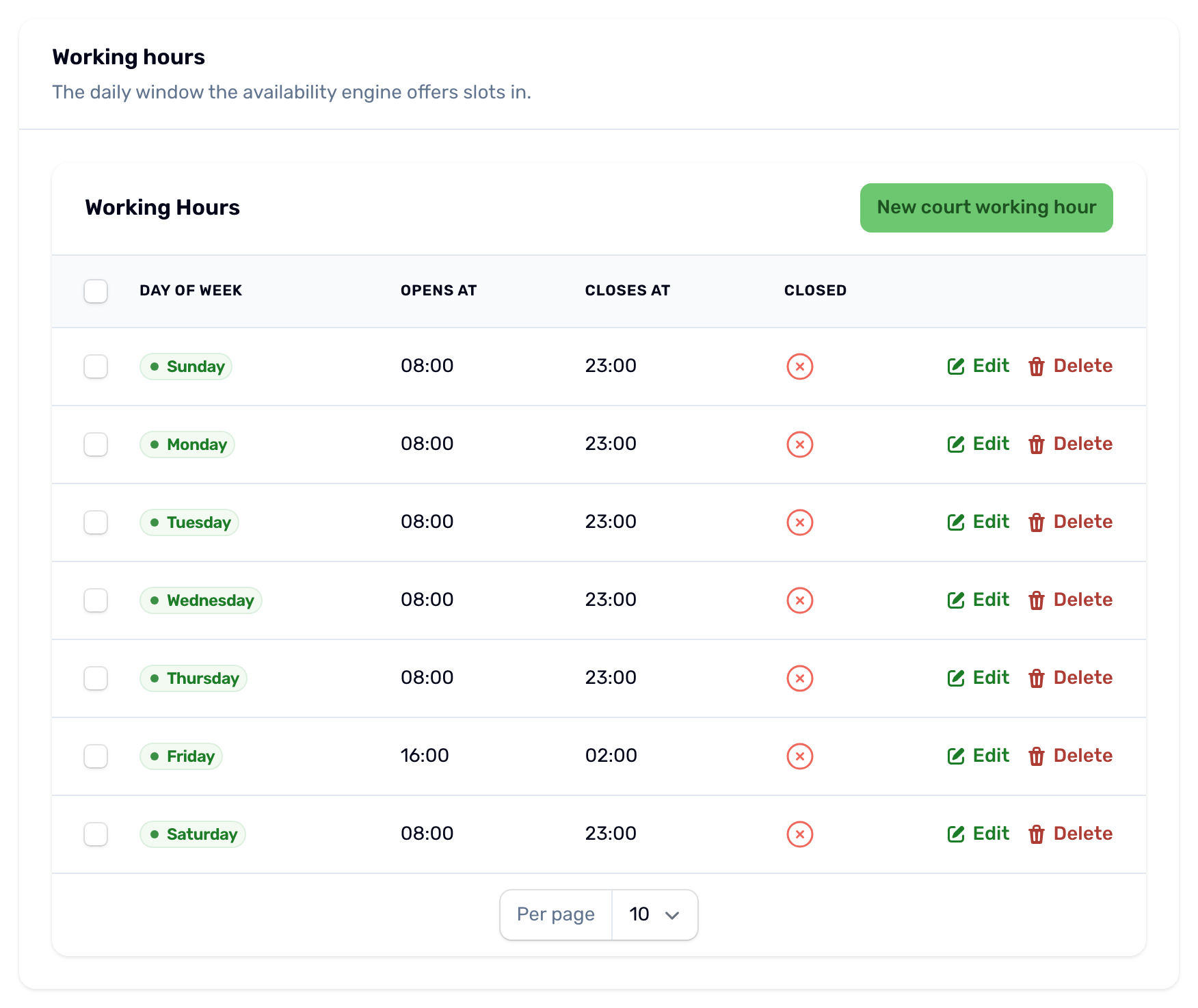
Add one row per day of the week with Opens at and Closes at, or turn on Closed for a day off.
- A day with no row is closed. Players see no times that day and the calendar says No working hours configured for this day.
- A closing time earlier than the opening time runs past midnight, so 16:00 to 02:00 is open until two in the morning.
- 00:00 as the closing time means midnight.
- Each day can only have one row.
Open times start at the opening time and repeat every 30 minutes. A time is only offered when the whole booking fits before closing, so a court that closes at 23:00 offers 22:00 for a 60 minute booking but not for 90 minutes.
Peak hours#
Peak hours mark the busy windows that use the Peak hour price. Add a row with the day, Starts at and Ends at. A day can have several windows as long as they do not overlap. A window cannot cross midnight, so split a late window into two rows, one each side of midnight. How peak prices combine with the rest is on Prices.
Free slots#
A free slot rule makes some times cost nothing, for a promotion, an open day or a member evening. Free times show as Free in the app and book at 0 QAR, and a booking that costs nothing is confirmed without payment.
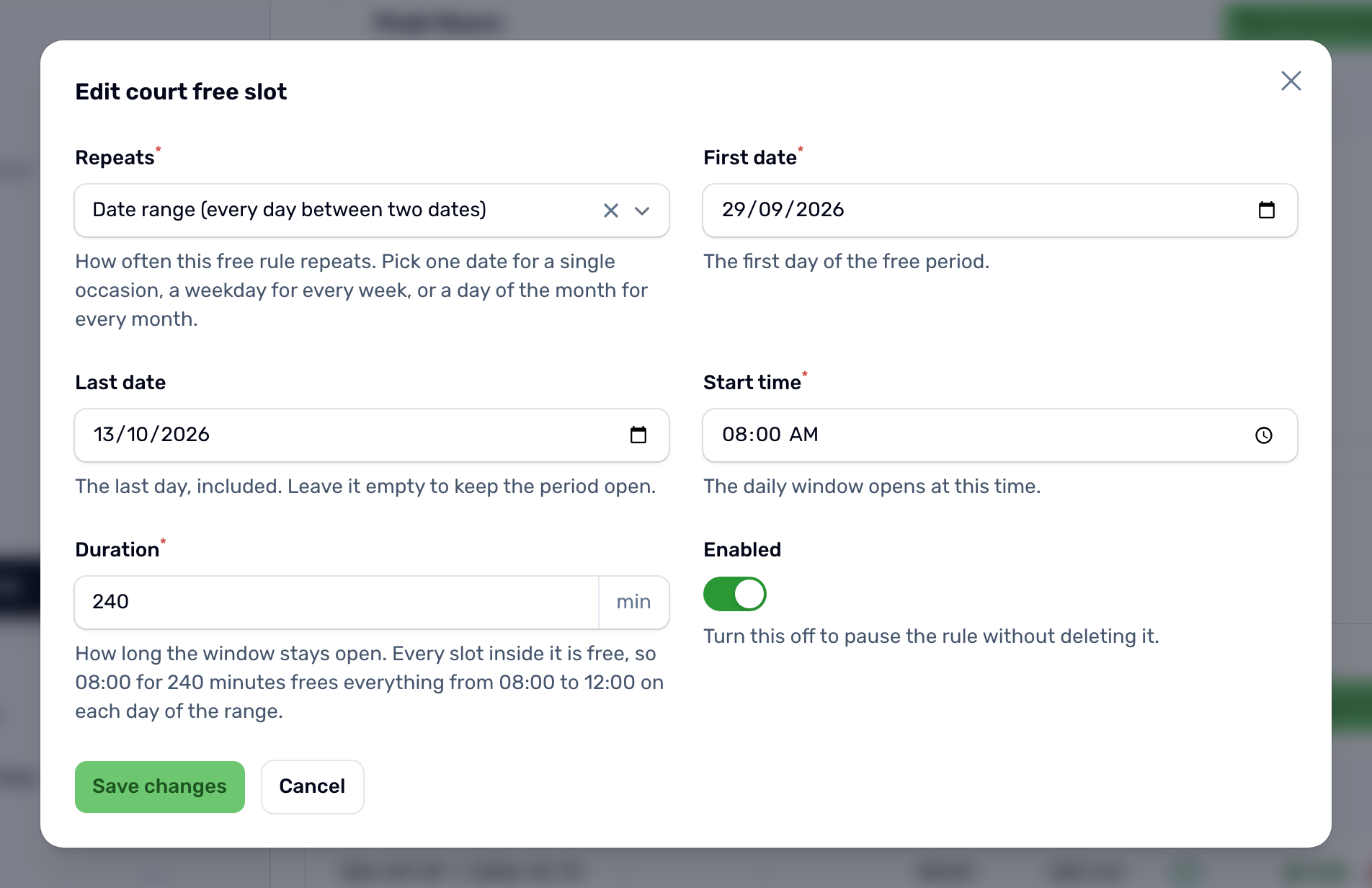
Free slots live on the Schedule tab of each court. Press New court free slot, pick how the rule repeats, then say which hours are free.
| Repeats | Which days |
|---|---|
| Once (a single date) | The one date you pick. |
| Weekly (every …day) | That day of the week, every week. |
| Monthly (same day each month) | That date of each month, for example the 15th. |
| Date range (every day between two dates) | Every day from the first date to the last date. Leave Last date empty to keep it going with no end. |
For the hours, you have two choices:
- A window. The start time opens it and the duration is how long it stays open. Every time that starts inside the window and ends by its end is free, so 16:00 with 240 minutes frees the whole afternoon from 16:00 to 20:00.
- All day. Turn on All day and the start time and duration disappear. Every time of those days is free, from the first slot to the last.
A window never crosses midnight, so a booking that runs past 24:00 is not free even with All day.
The Enabled switch pauses a rule without deleting it.
The same rule on several courts#
Each court keeps its own rules. To give other courts the same offer, pick them in Also add to these courts when you create the rule, or press Copy to other courts on a rule you already have. A court that already has an overlapping rule is skipped, and the portal tells you which ones.
Schedule Overrides#
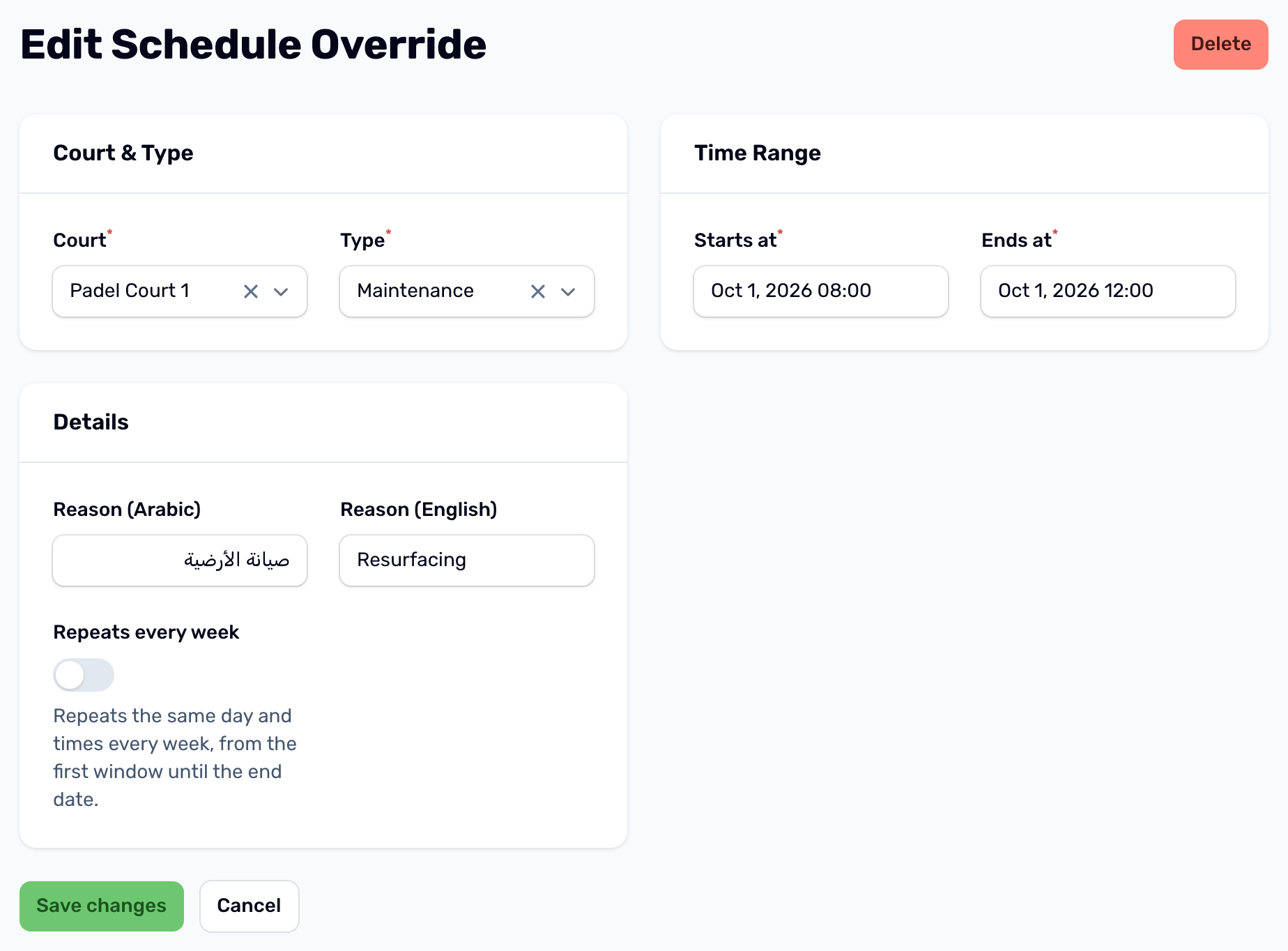
Use Schedule Overrides in the sidebar for anything tied to particular dates. Press New and fill in:
- The court and the type.
- The start and the end, as a date and time each, in 15 minute steps.
- For a custom price, the Hourly price during this window.
- A reason in Arabic and in English, for your own records.
- Repeats every week, to repeat the same day and times each week, with Repeat until as the last date it repeats on.
| Type | Effect |
|---|---|
| Blocked, no bookings | Nobody can book any time that overlaps the window. The app shows those times as unavailable and the calendar shows Closed. |
| Maintenance | Same as Blocked. The type is for your records. |
| Holiday | Same as Blocked. |
| Custom price | The court stays open and every booking that touches the window is priced at the hourly price you set. |
An override covers only the dates and times you enter, or the same day and times every week until its last date when it repeats. Two custom prices on the same court cannot overlap.