

Cette page n’est pas encore traduite en français. Vous lisez la version anglaise.
Getting started
The setup a club does once, in order, before players can book: organization, venue, sports, courts, prices, hours and payments.
The portal dashboard shows a Finish setting up card until your first court can take bookings. It checks what already exists and points at the next step, so you can leave and come back at any time. The order matters: each step needs the one before it.
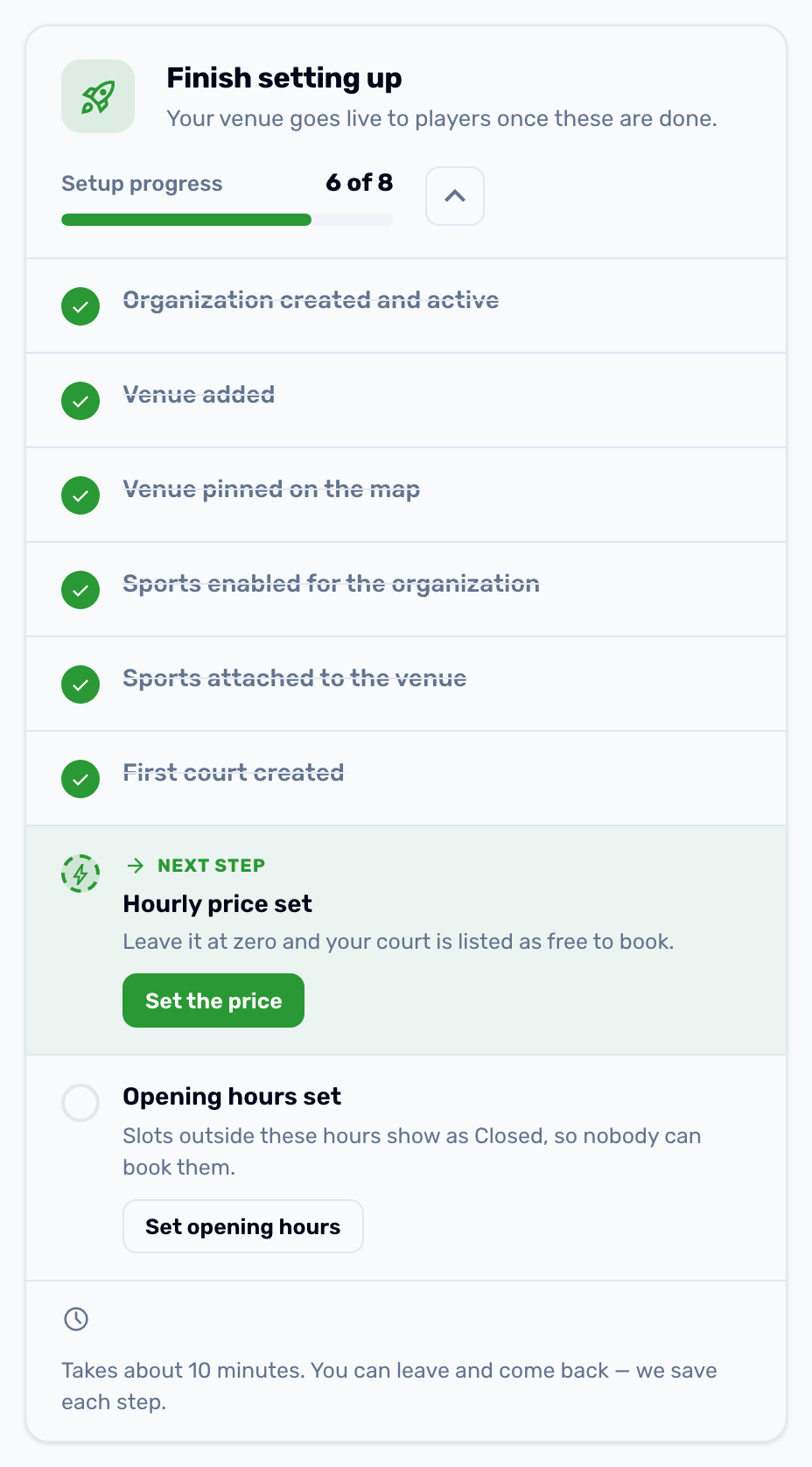
The checklist#
-
Organization created and active
Your organization is sent to Bsporty for approval when you create it. Until it is approved it does not show in your app and you cannot add its venues and courts. See Organizations and venues. -
Venue added
The place players travel to, with its name, address and photos. -
Venue pinned on the map
Drag the pin on the venue's map. Without a pin the venue never appears in the app's nearby search. -
Sports enabled for the organization
Open the organization and add the sports you offer on its Sports tab. -
Sports attached to the venue
A court can only use a sport its venue offers. With one venue this happens for you when you add a sport. -
First court created
The court is what players book. See Add a court. -
Hourly price set
Every court needs an hourly price. A court left at zero is listed as free to book. -
Opening hours set
Add the court's opening hours on its Schedule tab. Times outside them show as closed, so nobody can book them.
When all eight are done the card reads Setup complete and does not come back.
Before you open bookings#
The checklist covers what players need to see a court. A few more things decide how booking and paying work.
- Courts is switched on. In Settings, Services, the Courts card should read Live in the app. It is on by default when your plan includes it.
- Payments work. Your gateway keys are saved under Finance, Payment credentials, and the methods you want are switched on in Settings, Payments. See Booking rules and settings.
- Booking rules suit you. Check each court's minimum and maximum length, how many days ahead it can be booked and its cancellation policy.
- Listing style. In Settings, App experience, choose whether the app shows one card per venue or one card per court.
Try it#
- Open your app, find the court and book the next open hour.
- Pay with a small amount in the wallet or a real card.
- Open Calendar in the portal and check the booking is there, in green for paid.
- Cancel it from the app and check the refund arrives in the wallet.