

Cette page n’est pas encore traduite en français. Vous lisez la version anglaise.
Add a court
The court editor tab by tab: identity, sports, surface, matches, photos, policies and the tabs that come after saving.
Open Courts & Grounds and press New. The court editor has nine tabs and remembers the one you are on. Fill in Details first and save. The price lists, schedules and add ons only open once the court exists. Until then they show Available once the court is created.
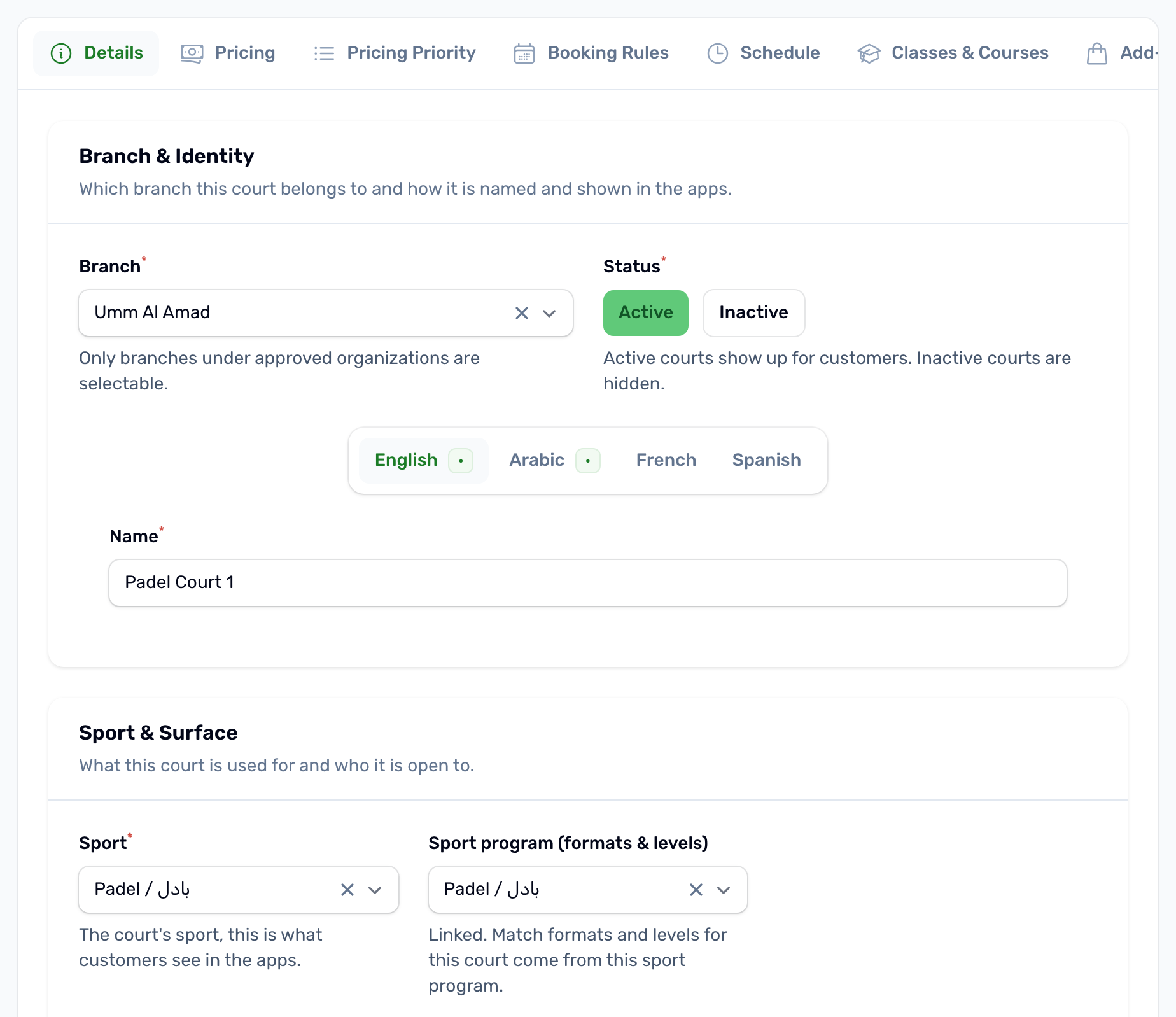
Details#
Branch & Identity#
- Branch: the venue the court belongs to. Only venues of approved organizations are listed. Changing it clears the sport.
- Status: Active courts show up for customers. Inactive courts are hidden. New courts start Active.
- Name in English and Arabic, and optionally French and Spanish.
Sport & Surface#
- Sport: the court's main sport, chosen from the venue's sports. This is what customers see in the apps.
- Sport program (formats & levels): filled in for you when you pick the sport. It carries the match formats and levels. If it reads Not linked, customers can still book the court but nobody can create a match on it.
- Also used for (extra sports): other sports played on the same court, such as a pitch used for football and rugby. Leave it empty for a single sport court.
- Surface type: Artificial Grass, Natural Grass, Wood, Acrylic, Concrete, Rubber, Sand or Other. Shown to customers as a detail.
- Play formats: the sizes of match this court hosts, such as 5v5 or 7v7. Leave it blank and the court uses the sport's formats from the Sports catalog. With extra sports, Formats per extra sport sets them for each one.
- Audience: Male, Female or Mixed. It limits who can create a match here. Leave it empty or pick Mixed to allow everyone.
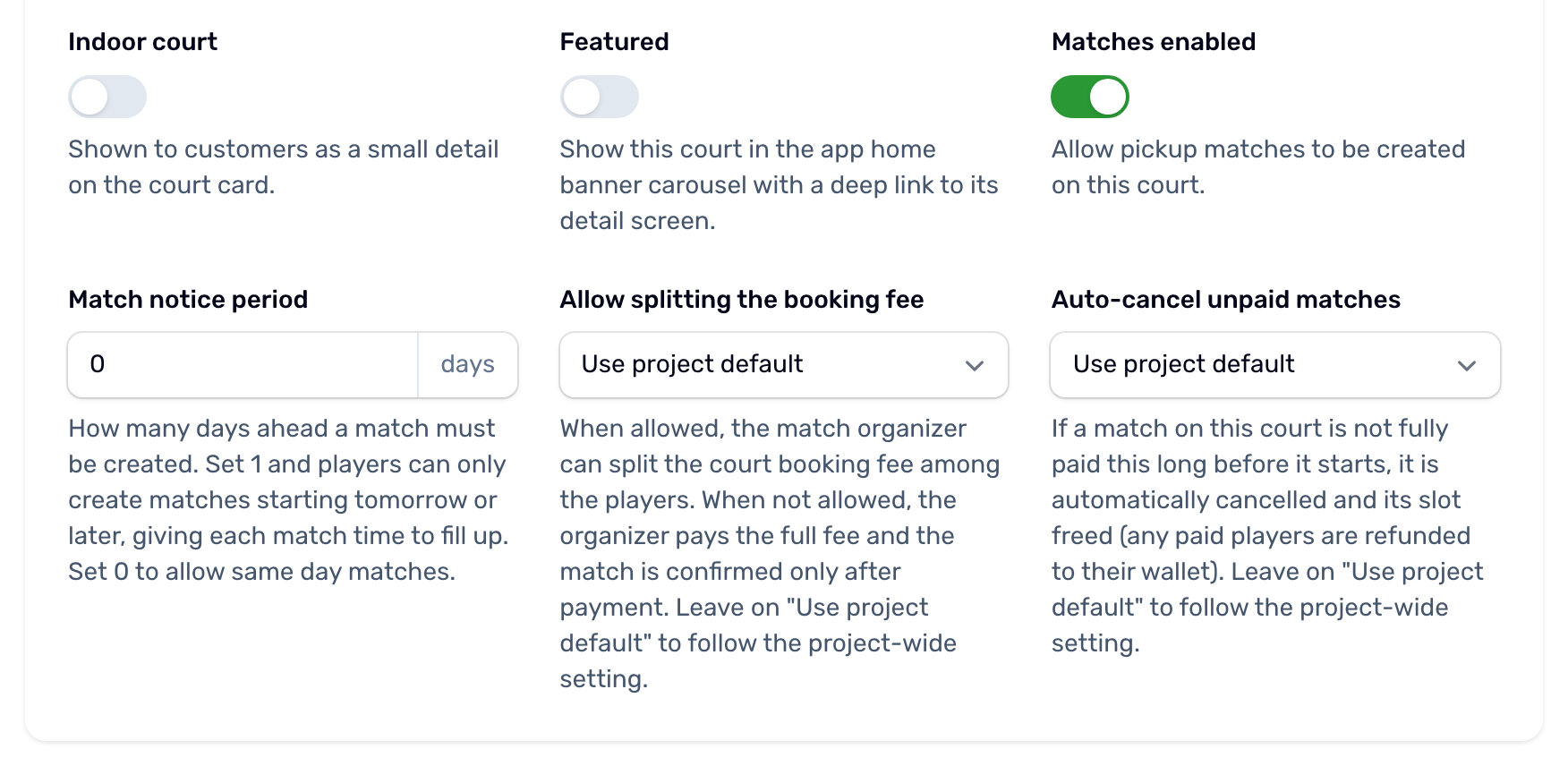
- Indoor court and Featured. Featured puts the court in the banner carousel on the app's home screen.
Matches#
Matches enabled is on for a new court. It lets players create matches here. While it is on, three more settings appear: Match notice period, Allow splitting the booking fee and Auto cancel unpaid matches. They are explained in Matches on your courts. Turning matches off also hides the Match Rules tab.
The other tabs#
| Tab | What it holds | Details |
|---|---|---|
| Match Rules | The rules players agree to before they create a match here, one per line, in each language. Leave them blank to use the app's defaults. | Matches on your courts |
| Pricing | The hourly price, the peak price, daypart rates and duration prices. | Prices |
| Pricing Priority | A read only summary of which price wins. | Prices |
| Booking Rules | The shortest and longest booking, how far ahead it can be booked, multiple slots and the cancellation policy. | Booking rules and settings |
| Schedule | Working hours, peak hours and free slots. | Opening hours and free slots |
| Classes & Courses | Training on this court. Off unless you turn on Sessions on this court. Covered in its own space. | |
| Add ons | Items players can rent or buy with the booking. | Add ons |
| Policies & Media | Policies, amenities and photos. | Below |
Policies & Media#
- Policies: one point per line in each language, shown under Policies & Terms on the court page in the app.
- Amenities: the same list as on the venue. The app shows the court's own amenities in the Courts only listing style.
- Photos: up to 5, in the order you drag them to. They show on this court only.
The courts list#
The Courts & Grounds list shows each court with its venue, sport, surface, prices, status and whether matches are on. Filter by venue, sport, status, indoor or matches enabled.
Deleting a court#
Delete moves the court to the trash. Its booking history is kept and you can restore it later. The portal asks for your login PIN, or your password if you have no PIN, before it deletes, and again before a court is deleted for good from the trash.