
Cette page n’est pas encore traduite en français. Vous lisez la version anglaise.
Book a slot
Pick a day, a length and a time on the Book tab, book several times at once, and add rentals and a voucher at checkout.
Everything starts on the Book tab of a venue. You need to be signed in to book. If you are not, the app asks you to sign in when you tap Book Now.
-
Pick the sport
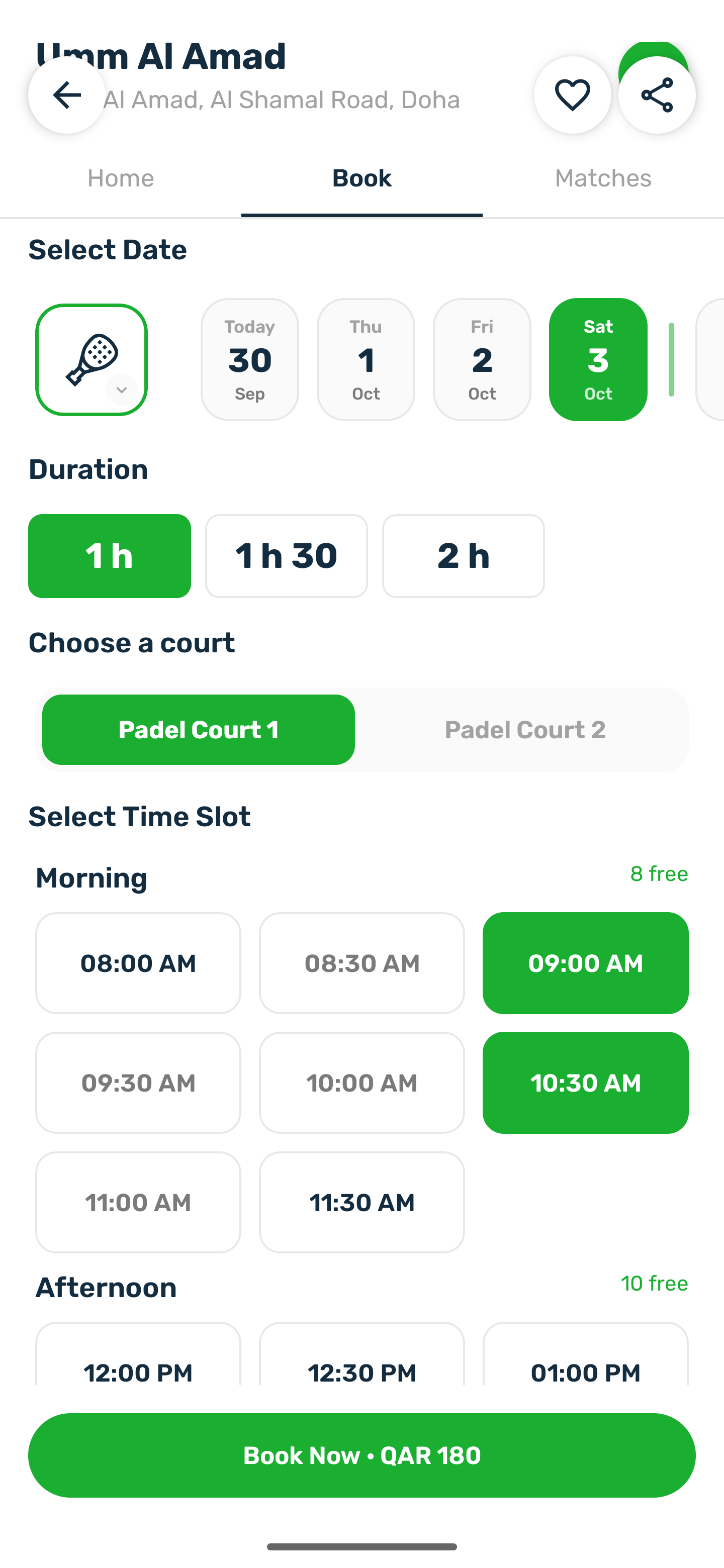
When the venue has more than one sport, tap the sport box and choose one. The times below are for that sport. -
Pick the day
The date strip starts today and runs as far ahead as the club allows. A day when the venue is closed is dimmed and reads Closed. -
Pick the length
Duration shows the lengths this court allows, such as 60, 90 and 120 minutes. It is hidden when the court has only one. -
Pick the court
When more than one court at the venue plays your sport, choose which one. -
Pick the time
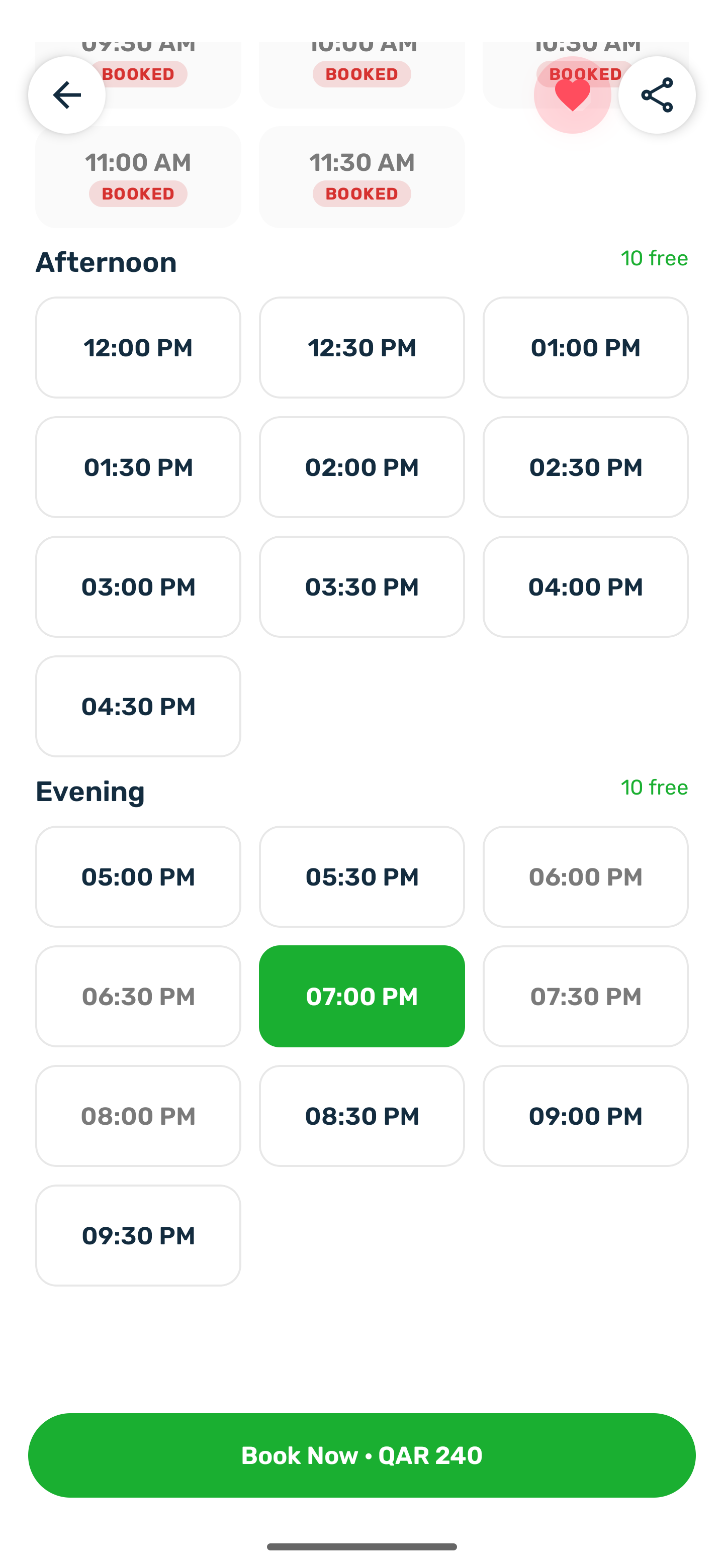
The open times are grouped under Morning, Afternoon and Evening, each with how many are free. Tap a time to select it. -
Book Now
The button shows the total for the times you picked. It takes you to checkout.
What the times mean#
| You see | Meaning |
|---|---|
| A plain time | Open. Tap to select. |
| BOOKED | Someone already has it. |
| ON HOLD | Someone is paying for it right now. If they do not finish, it opens again straight away. |
| Join with a count, such as 3/10 | Booked by a public match that still has room. Tap to open the match and join it. |
| Free | The club gives this time away. It costs nothing. |
| Dimmed | Already started, or it overlaps a time you picked. |
Start times are every 30 minutes. With a 90 minute length, 18:00 and 18:30 are both offered, and each one lasts 90 minutes.
Several times at once#
When the court allows it, you can tap more than one time and pay once. There is no switch: tapping another time adds it. Times that would overlap one you picked are dimmed. The club sets how many you can pick, two unless it changed it. When you reach the limit, more taps do nothing. On a court that allows only one time, tapping a new time replaces the old one.
Changing the day, the length, the sport or the court clears what you picked.
At checkout, times next to each other are shown as one stretch, and times that are apart are listed one per line. The length counts only the time you play, so 17:00 and 20:00 for an hour each is 120 minutes.
Checkout#
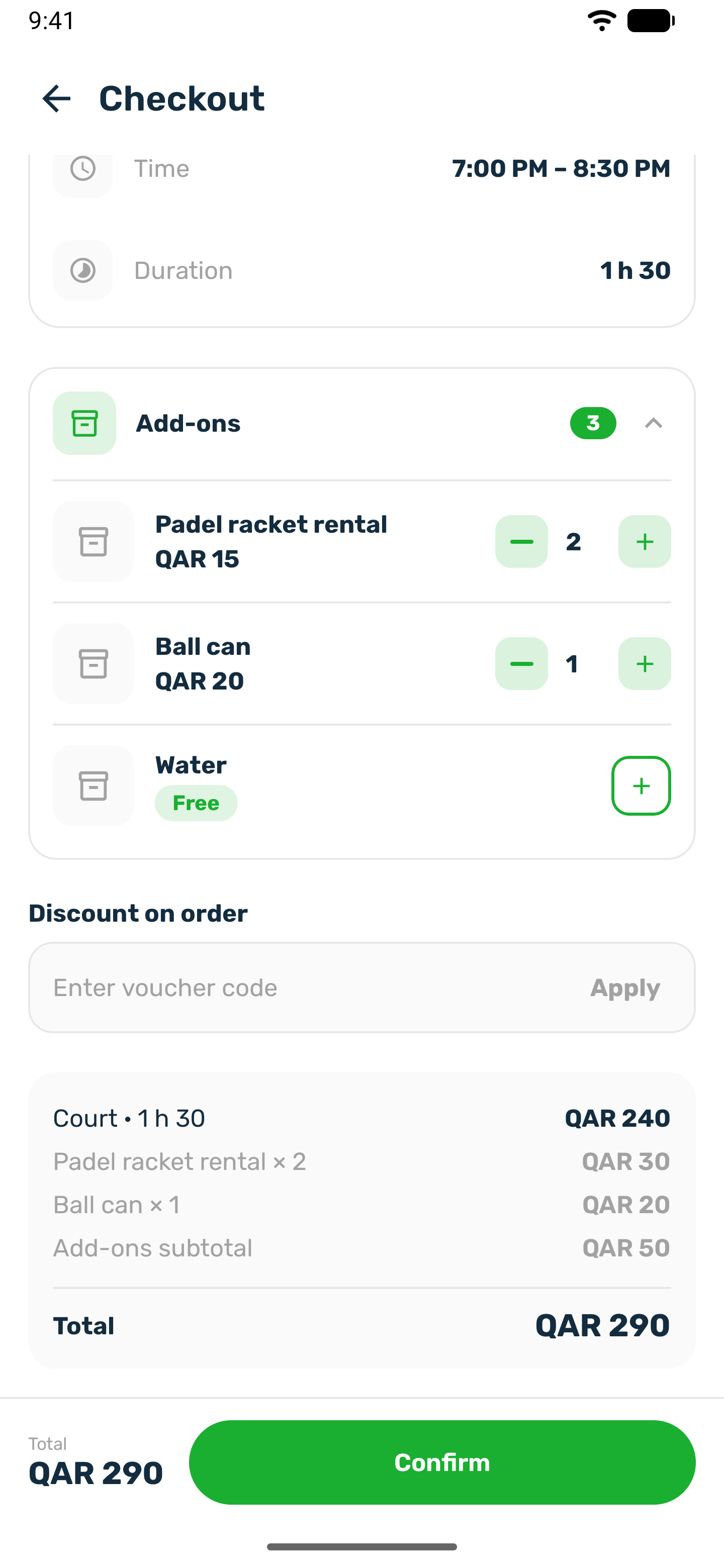
Checkout shows the booking: the venue and court, the sport, the date, the time and the length.
- Add ons: when the court rents or sells items, they are listed with their price or Free. Tap plus to add one and use the stepper to change how many. Some items have a limit per booking.
- Discount on order: if the club gave you a voucher code, type it in Enter voucher code and tap Apply. The code is checked against the whole order, the court and the add ons for every time you picked. Remove takes it off.
- The breakdown: the court with its length, such as Court · 60 min, each item with its quantity, the add ons subtotal and the Total. With a voucher it also shows the Subtotal and the voucher as a minus line, and the Total is what is left.
A code that cannot be used is cleared and the reason shows under the field, for example This voucher has expired or This voucher can't be used on court bookings. Nothing is booked with a refused code. Changing the add ons drops the discount, so tap Apply again. Once you confirm, the code can no longer be changed.
Tap Confirm (Confirm & Pay on iPhone). Your booking is created and your times are held for you while you pay. See Pay for your booking.