

Cette page n’est pas encore traduite en français. Vous lisez la version anglaise.
Booking rules and settings
Booking lengths, how far ahead players can book, several slots at once, holds on unpaid bookings, the cancellation policy and payment methods.
Booking rules live in two places. Rules that differ from court to court are on the court's Booking Rules tab. Rules for the whole club are in Settings, on the Bookings and holds, Payments and Wallet tabs. Where a court has a setting with Use project default, the court's own choice wins and the project setting only fills in for courts left on the default.
On each court: Booking Rules tab#
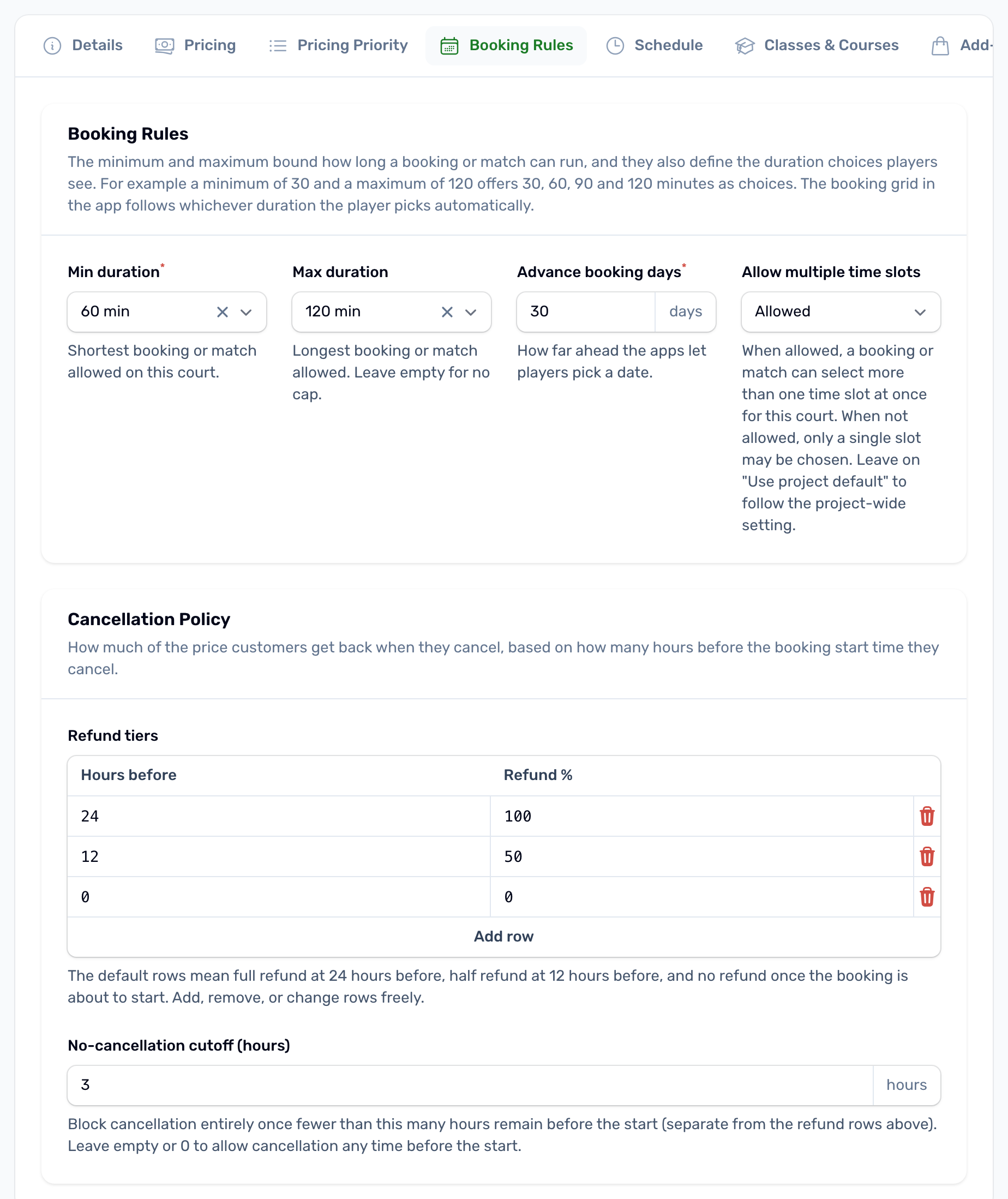
Booking lengths#
- Min duration: the shortest booking, 30, 45, 60, 90 or 120 minutes. Default 60.
- Max duration: the longest booking, from 60 to 240 minutes. Left on Sport default, players are offered lengths up to the usual maximum for the court's sport: 2 hours for padel, tennis and other racket sports, 3 hours for football and other team sports, 4 hours for cricket and golf, and never past the day's opening hours.
The app offers every length from the minimum to the maximum in 30 minute steps. With No limit it offers every length up to the court's longest opening in the week, and a booking never runs past the day's closing time. A minimum of 45 gives lengths of 45, 75 and 105 minutes.
How far ahead#
Advance booking days sets how many days the app's date strip shows, starting today. Default 30. The server refuses a booking or a match further ahead, so it holds even for an old app. The apps show at most 90 days.
Several slots at once#
Allow multiple time slots lets a player pick more than one time on this court and pay for them in one order. Choose Use project default, Allowed or Not allowed. How many times they can pick is set once for the club, below.
Cancellation policy#
The policy is a short table of Hours before and Refund %. When a paid booking is cancelled, the refund uses the row with the largest number of hours that is still less than or equal to the time left before the start. A court with no rows uses the default:
| Hours before | Refund % | Meaning |
|---|---|---|
| 24 | 100 | Cancelled a day or more ahead, everything back. |
| 12 | 50 | Between 12 and 24 hours ahead, half back. |
| 0 | 0 | Less than 12 hours ahead, nothing back. |
The refund is that percentage of the booking total, court and add ons, credited to the player's wallet in your app. If the percentage is 0 the booking is still cancelled and the payment is kept.
No cancellation cutoff (hours) goes further: inside that many hours before the start, the player cannot cancel in the app at all. Leave it empty or 0 to allow cancelling right up to the start. The app shows the policy rows and the cutoff on the booking.
For the whole club: Settings, Bookings and holds#
Unpaid court bookings#
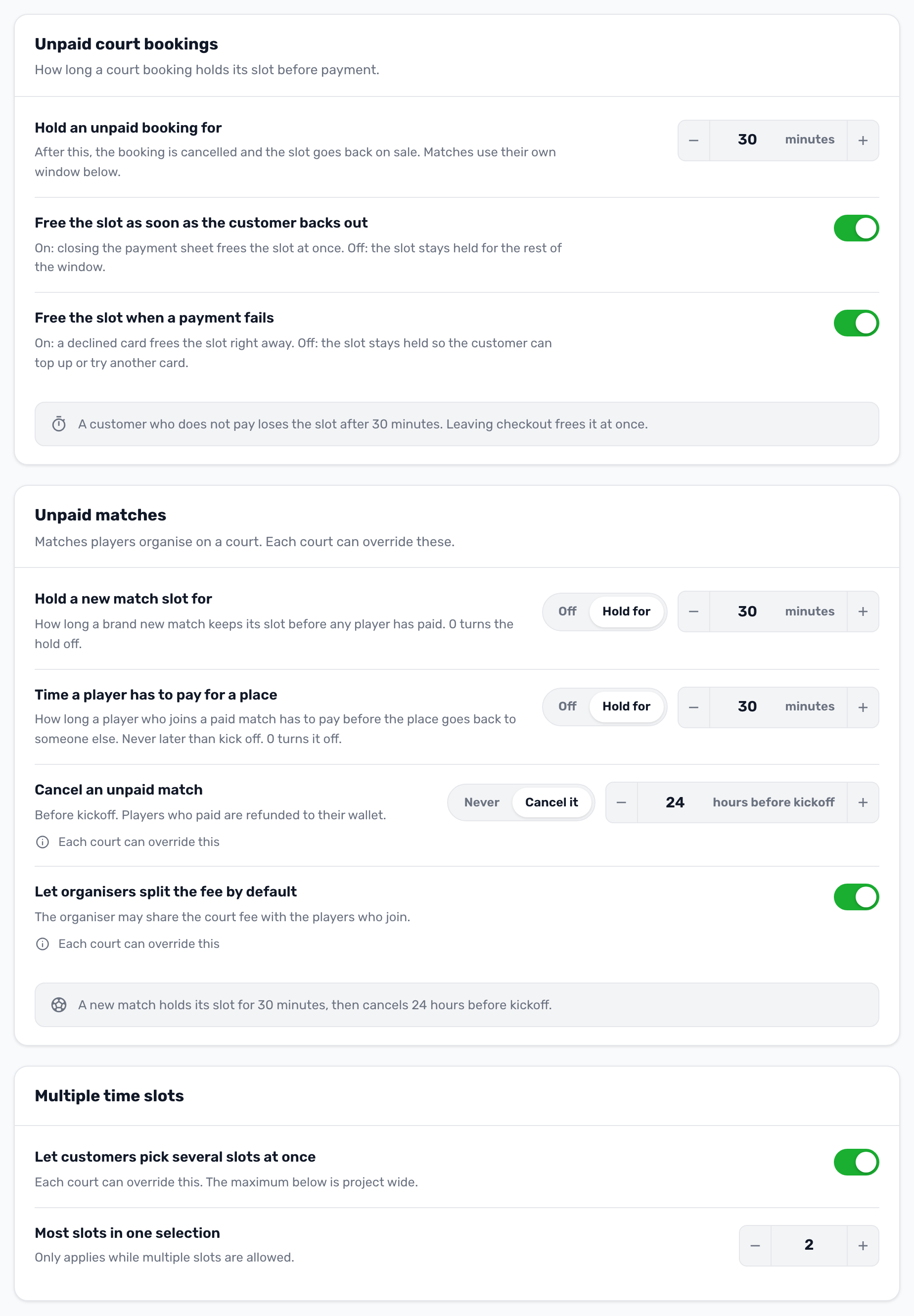
A booking holds its slot from the moment the player confirms, before they pay. These three settings decide how long.
| Setting | Default | What it does |
|---|---|---|
| Hold an unpaid booking for | 30 minutes | After this the unpaid booking is cancelled, the slot goes back on sale and the player is told it was not paid in time. From 5 minutes to 24 hours. Bookings your staff take in the portal are never cancelled this way. |
| Free the slot as soon as the customer backs out | On | Leaving checkout without paying frees the slot at once. Off keeps it held for the rest of the window, so the player can come back. |
| Free the slot when a payment fails | On | A declined card frees the slot at once. Off keeps it held so the player can top up or try another card. |
A slot is never freed while a card payment is still being processed. The hold window catches it afterwards. If that payment goes through after the booking was released, the money goes straight back to the player's wallet.
Multiple time slots#
- Let customers pick several slots at once: off by default. Courts left on Use project default follow this.
- Most slots in one selection: default 2, up to 10. It applies to every court that allows multiple slots.
Unpaid matches#
The same tab has the settings for matches players organize on your courts. They are explained in Matches on your courts.
Payments#
The Payments tab, card Methods at checkout, lists what players can pay with. Your gateway must have live keys under Finance, Payment credentials.
- Credit card: Visa and Mastercard.
- Apple Pay on iPhone and Google Pay on Android.
- NAPS debit card: Qatari debit cards, only while your gateway is SkipCash.
The wallet is always offered in the app when the player's balance covers the amount. If every method is off, the page warns that customers will not be able to pay.
The Registration fee card on the same tab applies only to official matches. It does not change court booking refunds.
Wallet#
On the Wallet tab, Smallest top up (default 50 QAR) and Largest top up (default No limit) bound what a player can add at once. The app's quick amounts are the smallest top up times 1, 2, 4 and 10.
Turning the service on or off#
In Services, the Courts card switches the whole service. When it is off, courts disappear from the app, from the portal menu and from the API. The card's Booking rules button opens the Bookings and holds tab.