

Esta página aún no está traducida al español, así que estás leyendo la versión en inglés.
Set up your club
The club page players see comes from your venue: its name, logo, audience, indoor or outdoor, description, photos, amenities and activities.
In the app a club is one of your venues. Open My Venue in the portal (or the venue from your venues list) and fill in what the club page shows. Anything you leave empty is simply not shown in the app.
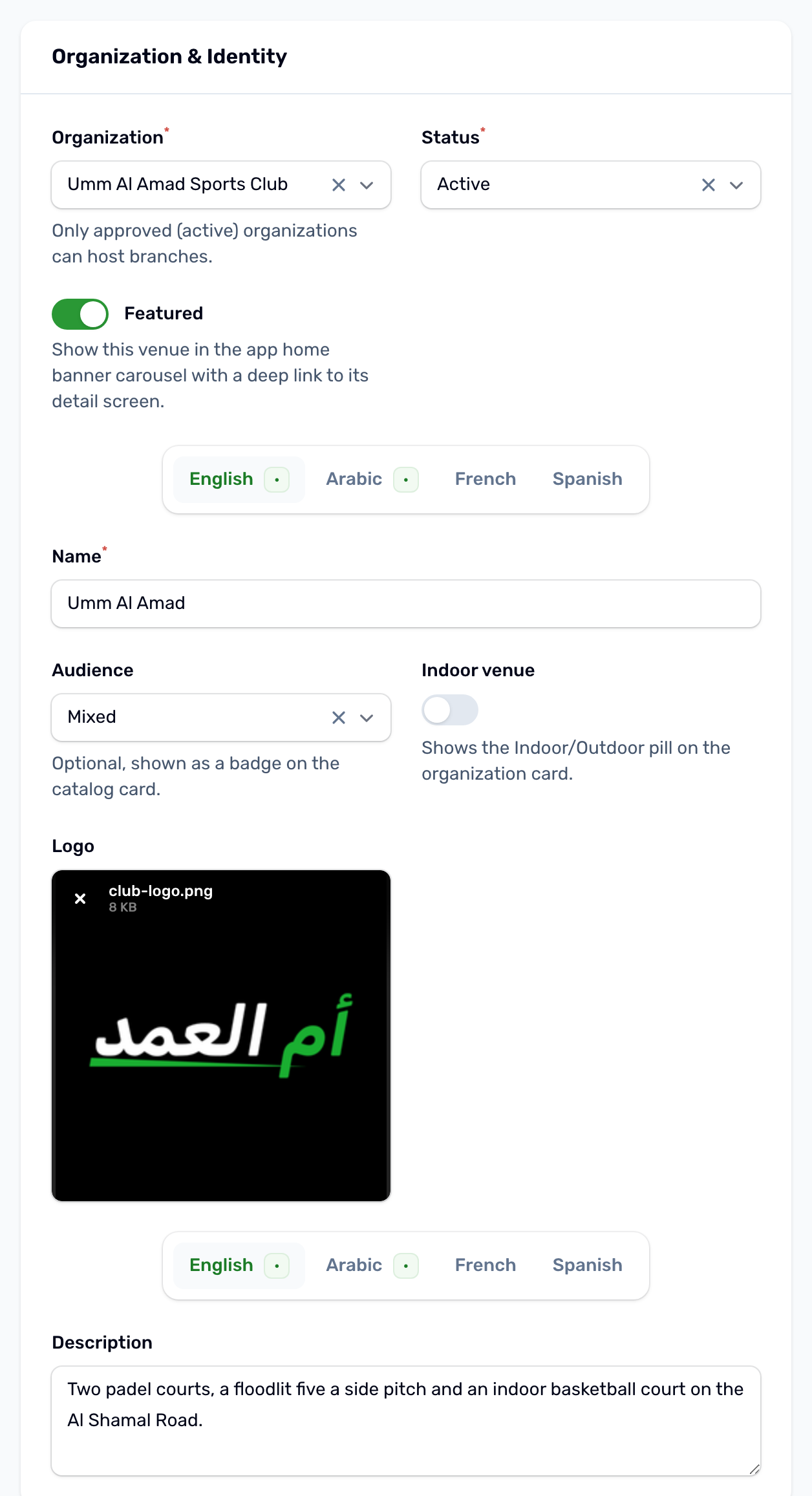
| Field | Where it shows in the app |
|---|---|
| Name | The club card and the club page. Fill it in English and Arabic. |
| Featured | A Featured badge on the club card. Featured clubs are listed first. |
| Audience | Mixed, Men or Ladies as a badge on the card, and the Who it's for filter. |
| Indoor venue | An Indoor or Outdoor badge on the card, and the Indoor or outdoor filter. |
| Logo | Used as the card's picture when the venue has no photos. |
| Description | The About section of the club page, in each language you fill. |
| Photos | The first photo is the card's cover, and all of them form the carousel at the top of the club page. Up to 5. |
| Amenities | The Amenities section of the club page, for example Parking or Showers. |
| Phone, address and location | The call button, the area under the club name, the distance and the club map. |
Available activities#
The Available activities tab of the venue lists what people can do at your club. Each activity shows as a chip on the club page and as a filter chip above the clubs list, so players can find clubs that offer padel or a gym.
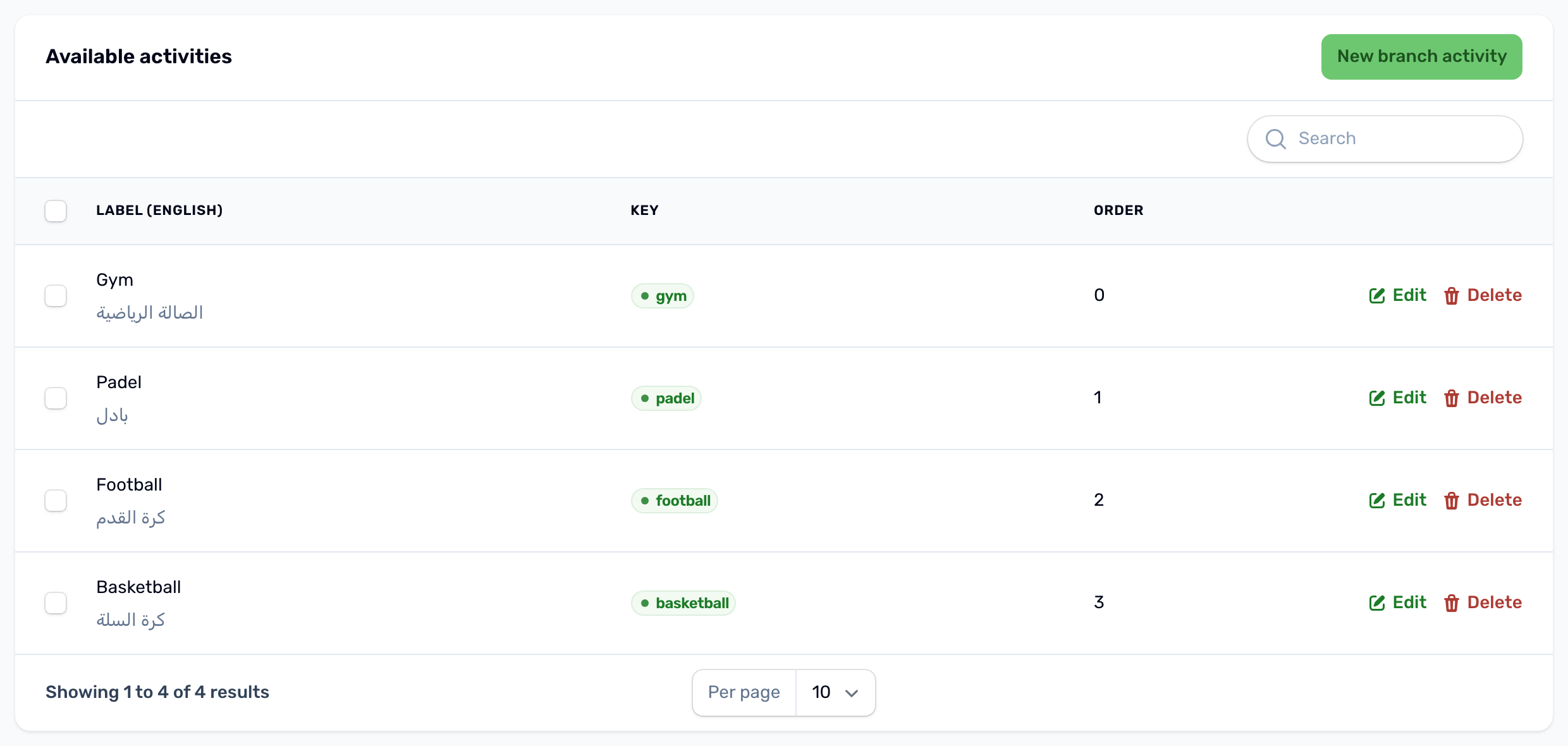
- Key is the value the filter uses, for example padel. Keep it short and never change it once players use it.
- Icon is optional. A sport name such as padel, football or basketball gets that sport's icon in the app.
- Activity label is what players read, in each language.
- Order sets the order of the chips.
The rating on the club page comes from the reviews players leave for the venue. It is hidden until there is at least one.