

Cette page n’est pas encore traduite en français. Vous lisez la version anglaise.
Registrations and check in
The Participants tab: statuses, adding a participant yourself, editing one, and checking players in at the venue with their code.
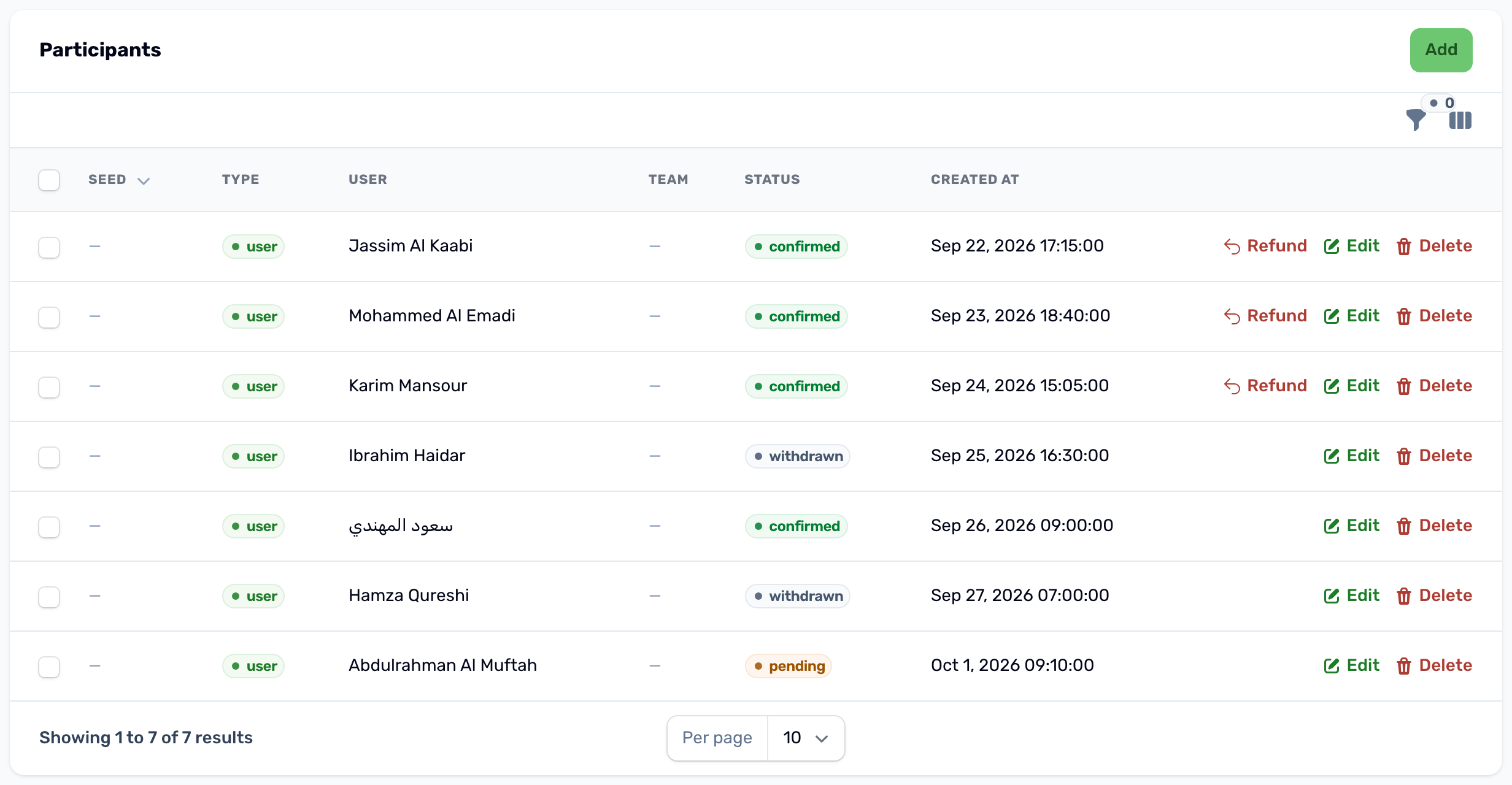
Players register themselves in the app. The Participants tab shows every registration with its type, player or team, status and the date it was made. Team tournaments add the Roster and Payment columns.
Statuses#
| Status | Meaning |
|---|---|
| Pending | Registered, waiting for payment. It holds a place. |
| Confirmed | Free or paid in full. The player or team is in. |
| Withdrawn | Cancelled by the player, by a team leaving, or because it was not paid in time. The place is free again. |
| Disqualified | Set by you. Only Confirmed participants go into the bracket. |
There is no separate approval step: free entries are confirmed at once and paid ones when the payment arrives. To confirm or disqualify someone yourself, press Edit on the row and change the status. Seed sets the order used by the bracket, 1 being the top seed.
Add a participant yourself#
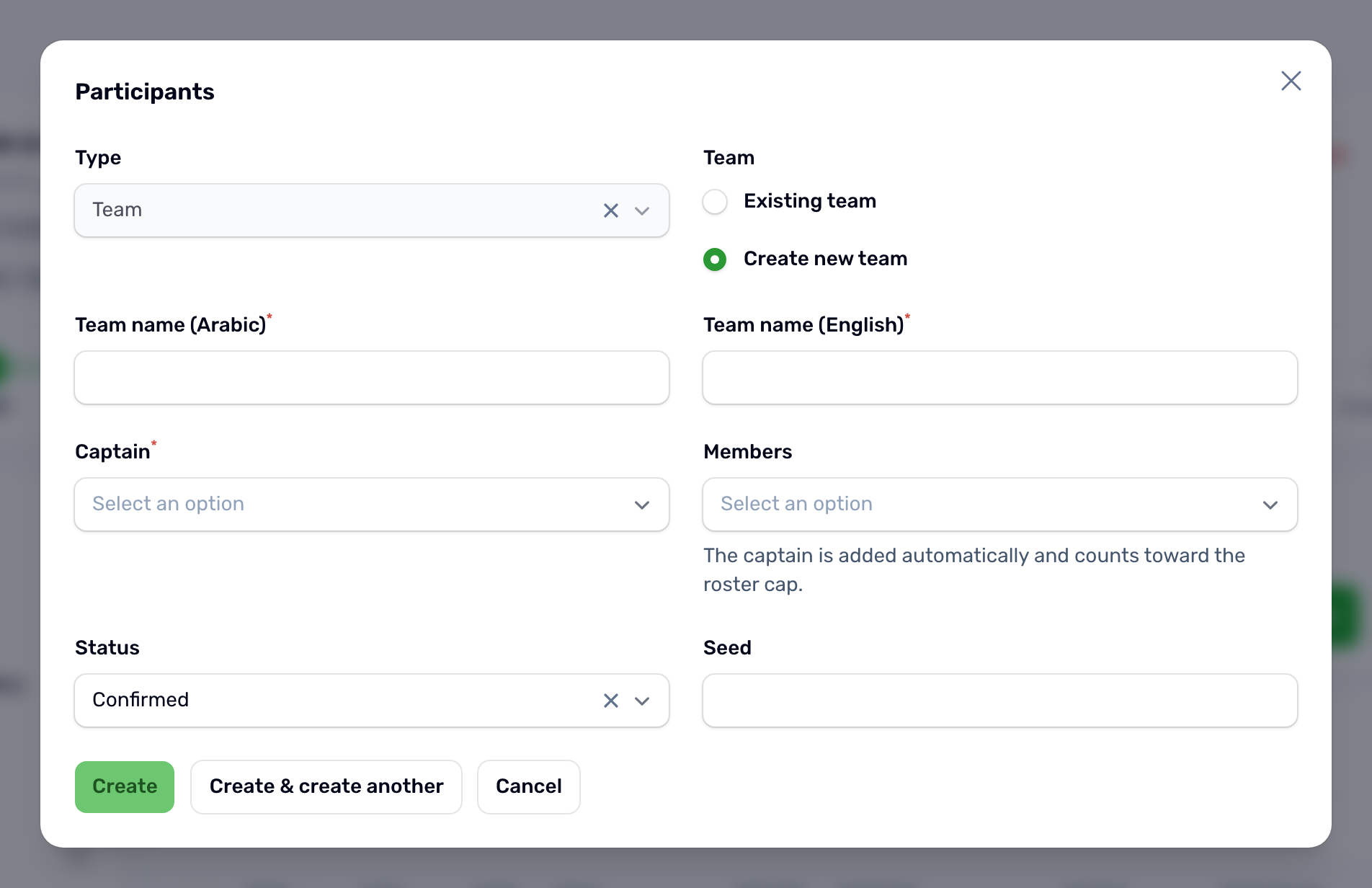
Press Add. For an individual tournament pick the player. For a team tournament pick an existing team, or choose Create new team and give its names, a captain and members. The portal refuses a player who is already registered and a roster bigger than the team size. The status is Confirmed unless you change it.
Check in at the venue#
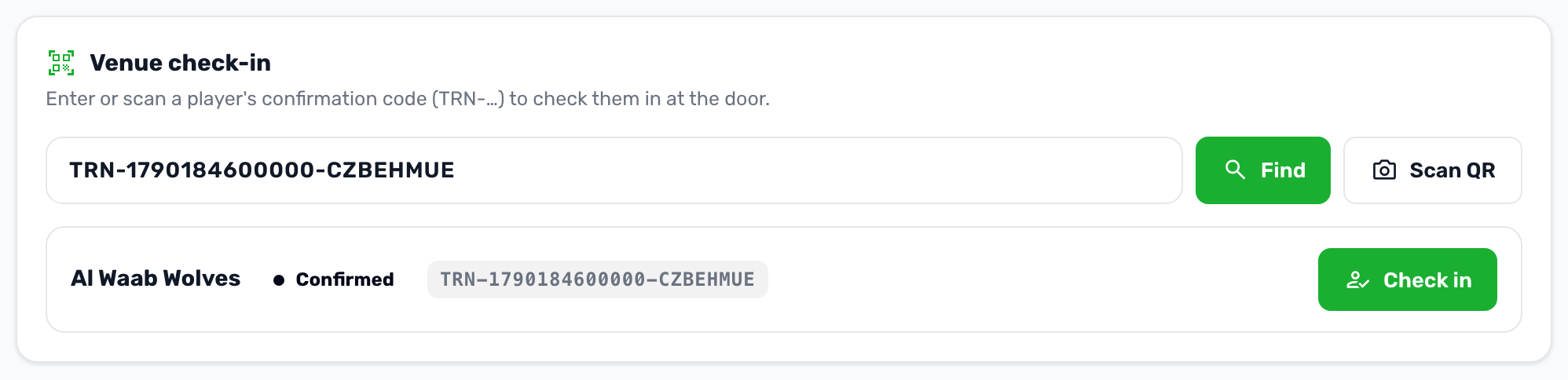
Every registration, made in the app or added by you, gets a confirmation code that starts with TRN. The player shows it as a QR code on their entry pass. In the Participants tab, Venue check in finds it:
-
Enter the code
Type the code, or press Scan QR and point the camera at the player's pass. -
Find
The card shows the player or team, the status and the code, or says that no registration of this tournament has that code. -
Check in
Press Check in. The card then shows Checked in with the time, and the player's pass shows Checked in too.
Deleting a registration#
Delete on a row removes the registration and first refunds anything paid to the payers' wallets. To keep the history, set the status to Withdrawn instead.
Selecting several rows and deleting them together works the same way: each paid registration is refunded before it is removed.