

Cette page n’est pas encore traduite en français. Vous lisez la version anglaise.
Review organizer applications
Players apply from the app. Your admins are emailed, and you approve, ask for changes or reject from the portal.
Nobody can publish an official match without an organizer account, and every account starts as an application that your club decides. You only ever see applications made from your own app, and an organizer you approve can only run matches for your club.
When a new application arrives#
- An email goes to every active admin of your club whose role can decide applications. The subject reads New organizer application, followed by the applicant's name and your club. It lists the applicant's details and has a button that opens the application in the portal. Replying to the email writes to the applicant.
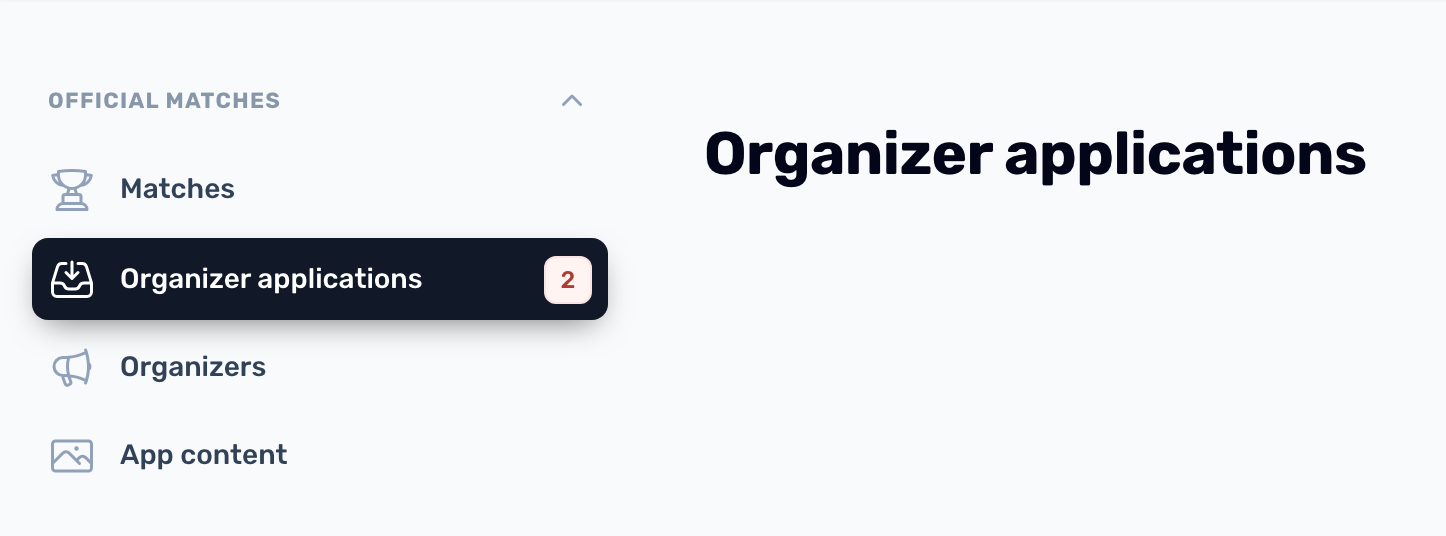
- A red count appears next to Organizer applications in the sidebar. It counts applications waiting for review.
- If nobody at your club can decide applications yet, the email goes to the platform team instead.
- While Official matches is switched off, players cannot apply and nobody is emailed.
What the applicant sends#
| Field | Notes |
|---|---|
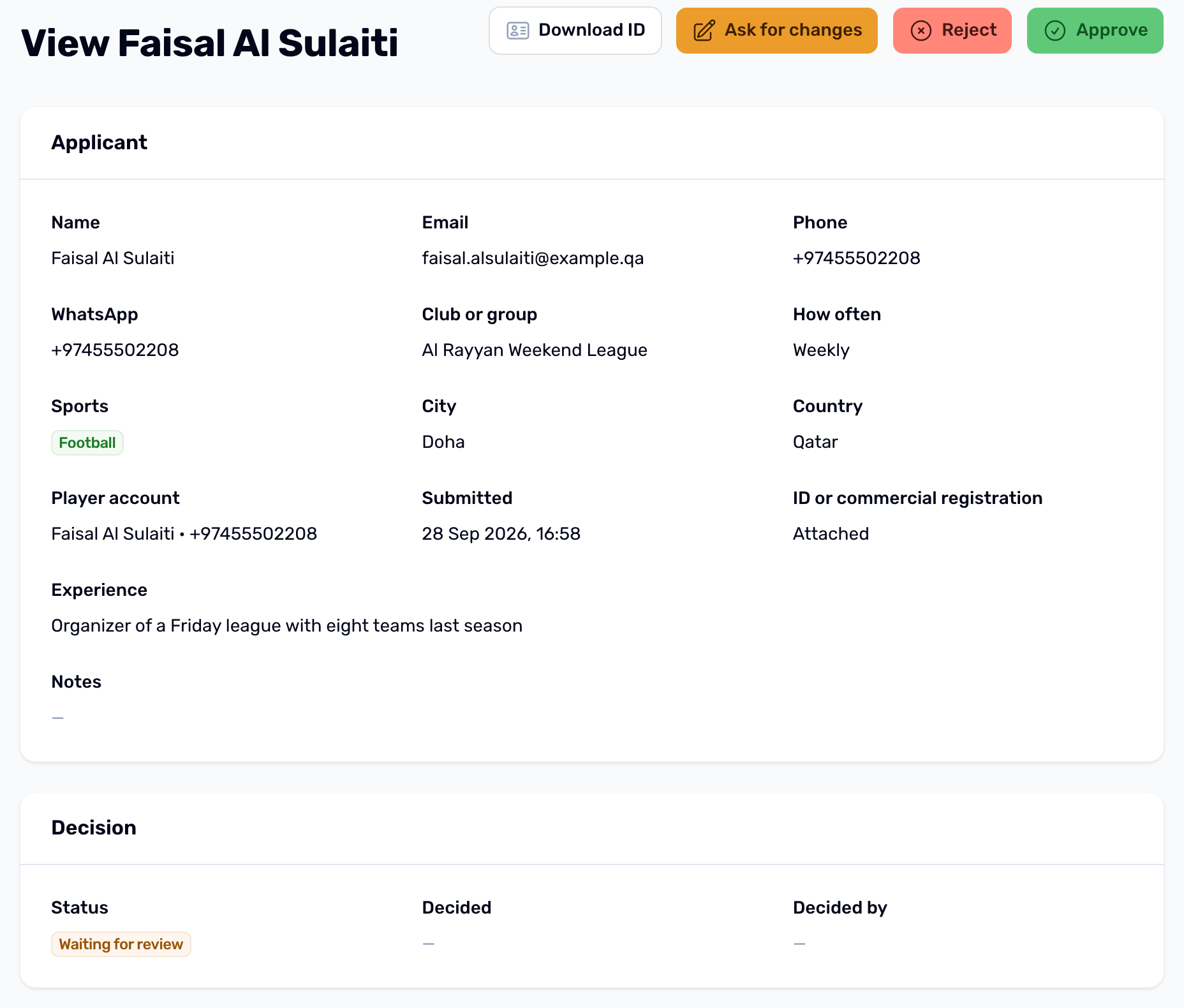
| Name, phone, email | The email becomes their organizer sign in. |
| Club or group | The name they organize under. |
| Sports | Chosen from your club's sports that can be a match. |
| Where they play and how often | Getting started, Weekly or Several a week. |
| ID or commercial registration | A photo or PDF, kept private. Use Download ID on the application page to see it. |
| Player account | The app account that filed the application. |
The applicant also accepts the organizer terms, which include refunds to players when they cancel. A person can have only one application waiting or approved at a time.
Decide#
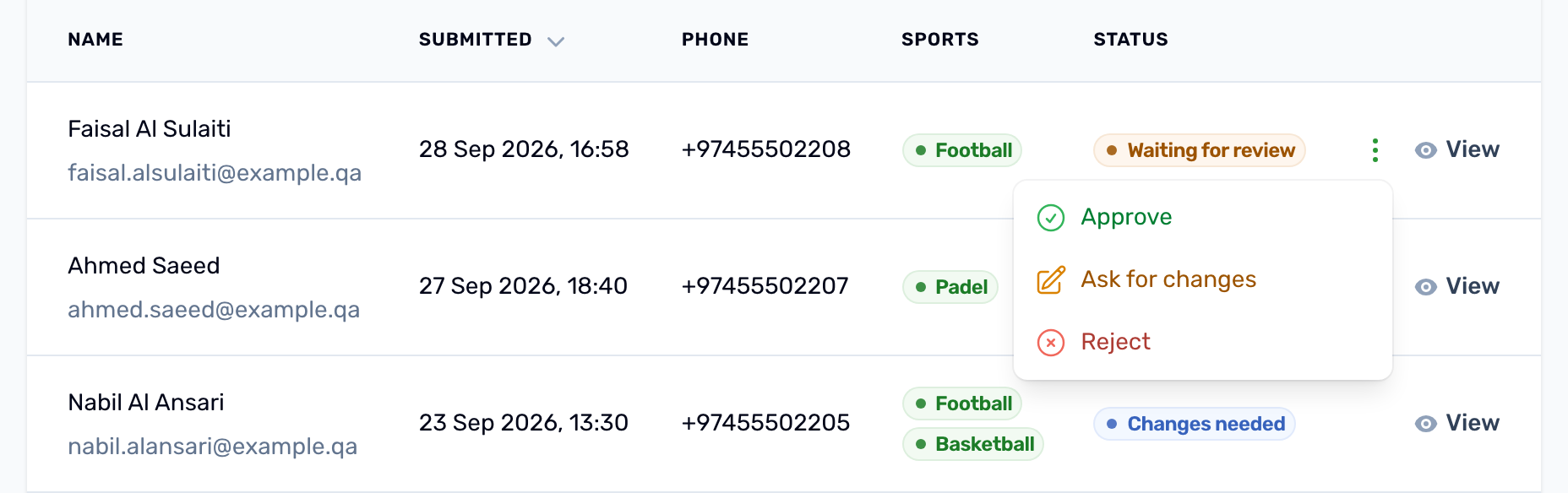
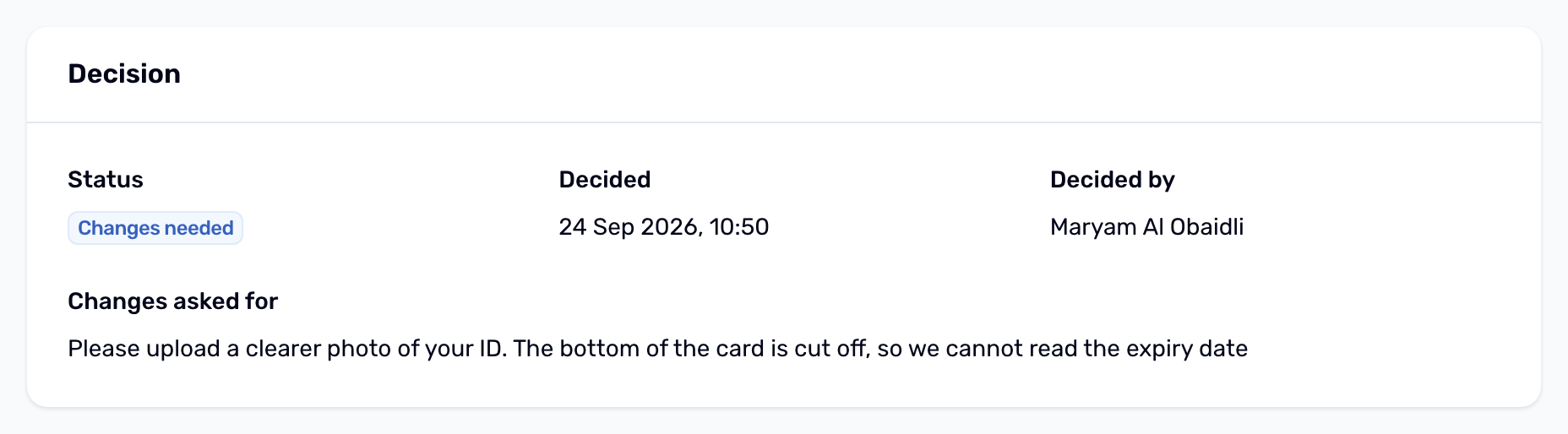
Open the application with View. The page shows the applicant and the decision so far. You can also decide from the list: the menu at the end of a waiting row (three dots) holds Approve, Ask for changes and Reject. Only an application that is Waiting for review can be decided.
-
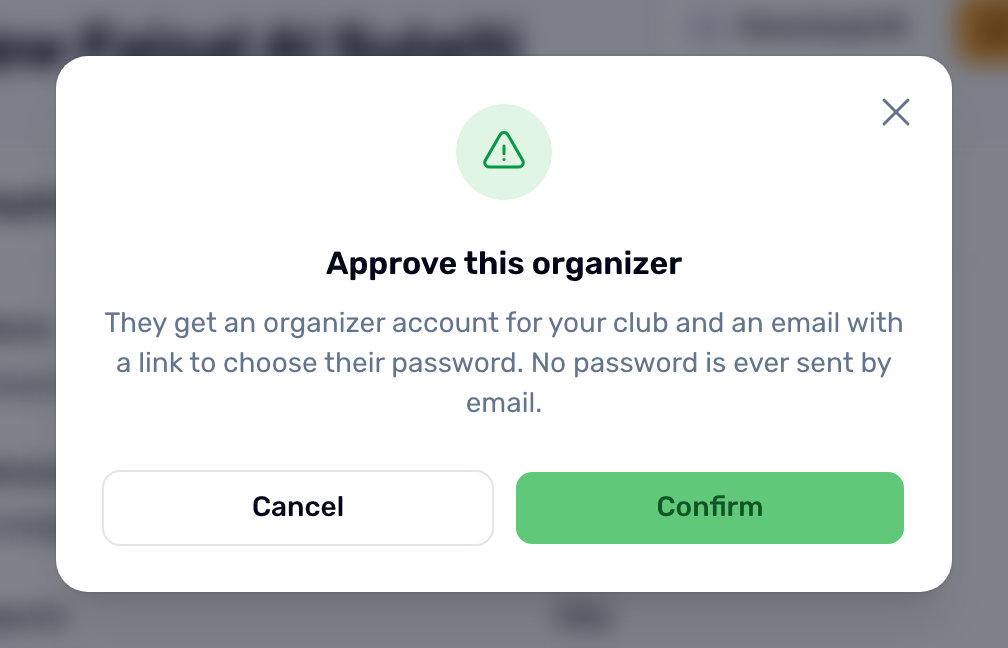
Approve
Confirms Approve this organizer. An organizer account is created for your club and the applicant gets an email with a link to choose their password. No password is ever sent by email. The applicant is also told in the app and can choose the password there with Start organizing. -
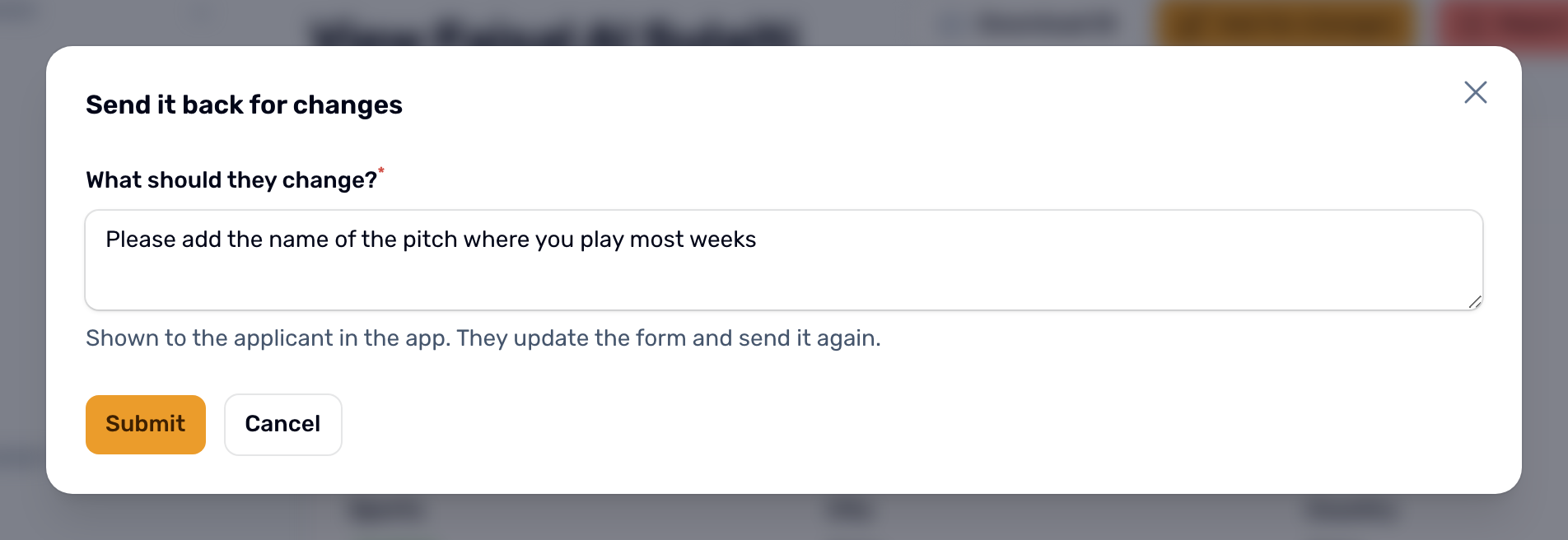
Ask for changes
Write what they should change. The note is shown to the applicant in the app, so write it for them. They update the form and send it again. It comes back as Waiting for review and your admins get an email that reads Organizer application updated. -
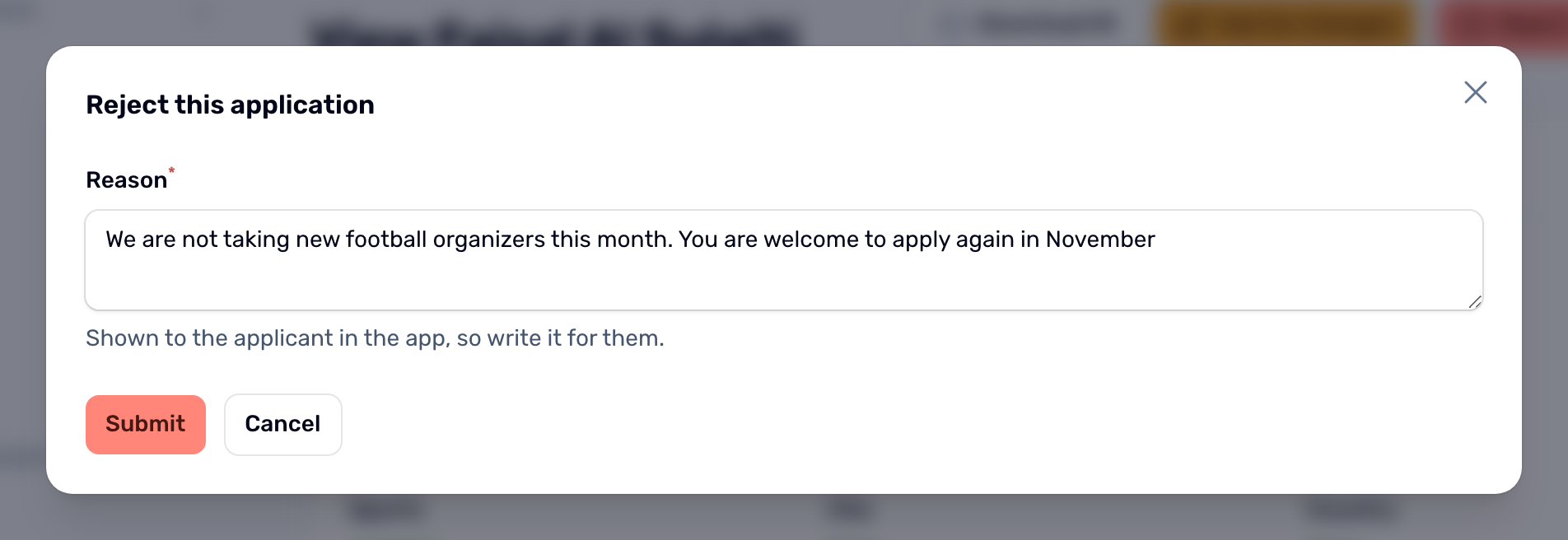
Reject
A reason is required. It is shown to the applicant in the app. They can apply again later with a new application.
Application statuses#
| Status | Meaning |
|---|---|
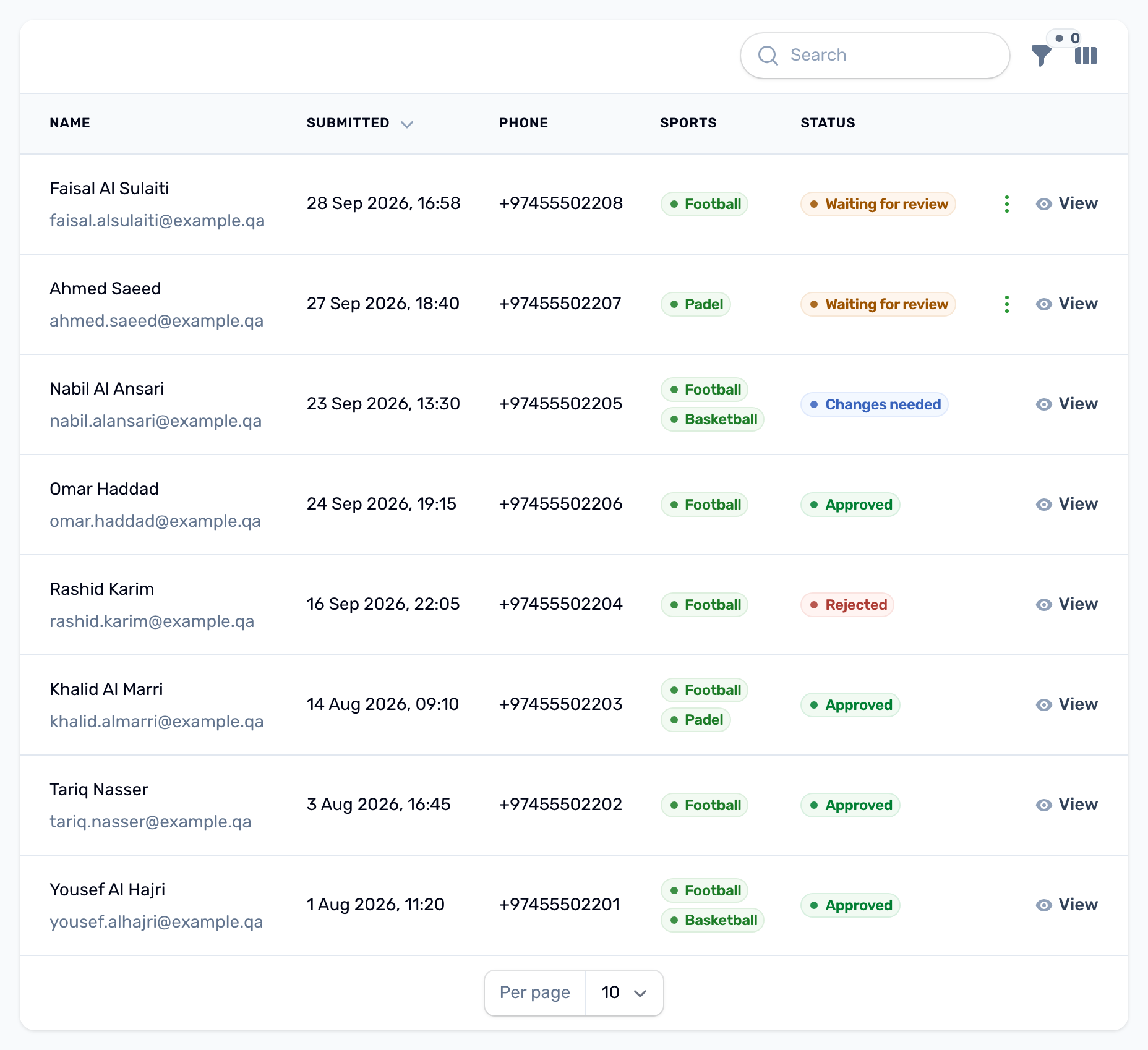
| Waiting for review | New or resent. Counts in the red badge. |
| Changes needed | Sent back with your note. Waiting for the applicant. |
| Approved | The organizer account exists. See it under Organizers. |
| Rejected | Closed with your reason. |
If approval fails#
An email can belong to one organizer per club. If the applicant's email is already an organizer of your club, approval stops with This email already belongs to an organizer of this club. Ask for changes so they use another email.
Manage organizers and freeze accounts What you see about each organizer and how freezing works.