

Esta página aún no está traducida al español, así que estás leyendo la versión en inglés.
The tournament workspace
The header with the status buttons, the menu of tabs, the overview and the setup checklist.
Clicking a tournament in the list opens its workspace. Everything about one tournament is here.
The header#
The header shows the cover, both names, the status, and chips for the sport, format, venue, gender and level, and the entry fee. Under it are the buttons for the status:
- Move to the next status.
- Back to the previous status, after a confirmation.
- Cancel tournament and Delete.
- Generate Bracket and Auto schedule matches, only when they can be used.
The rail below the buttons shows where the tournament is in its life.
The menu#
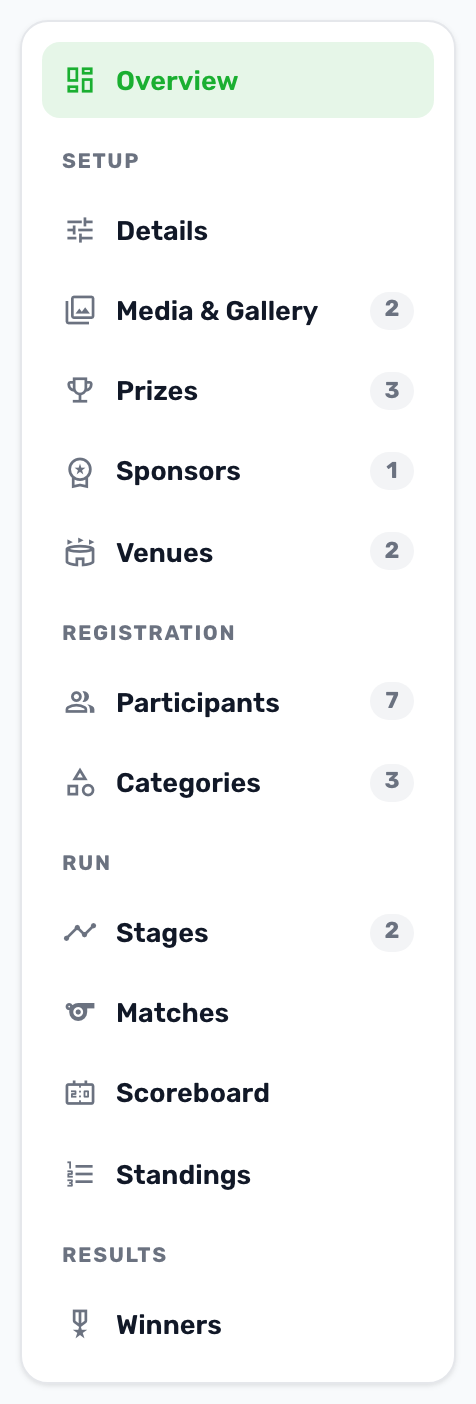
| Group | Tabs |
|---|---|
| Setup | Details, Media and Gallery, Prizes, Sponsors, Venues |
| Registration | Participants, Categories |
| Run | Stages, Matches, Scoreboard, Standings |
| Results | Winners |
The number next to a tab counts what is in it. The tab you are on is kept in the address, so a refresh brings you back to it.
Overview#
The Overview tab shows four figures: participants confirmed against the maximum, matches played against the total, the prize pool and the days until the start. The prize pool adds up every prize, including the estimated value of physical prizes.
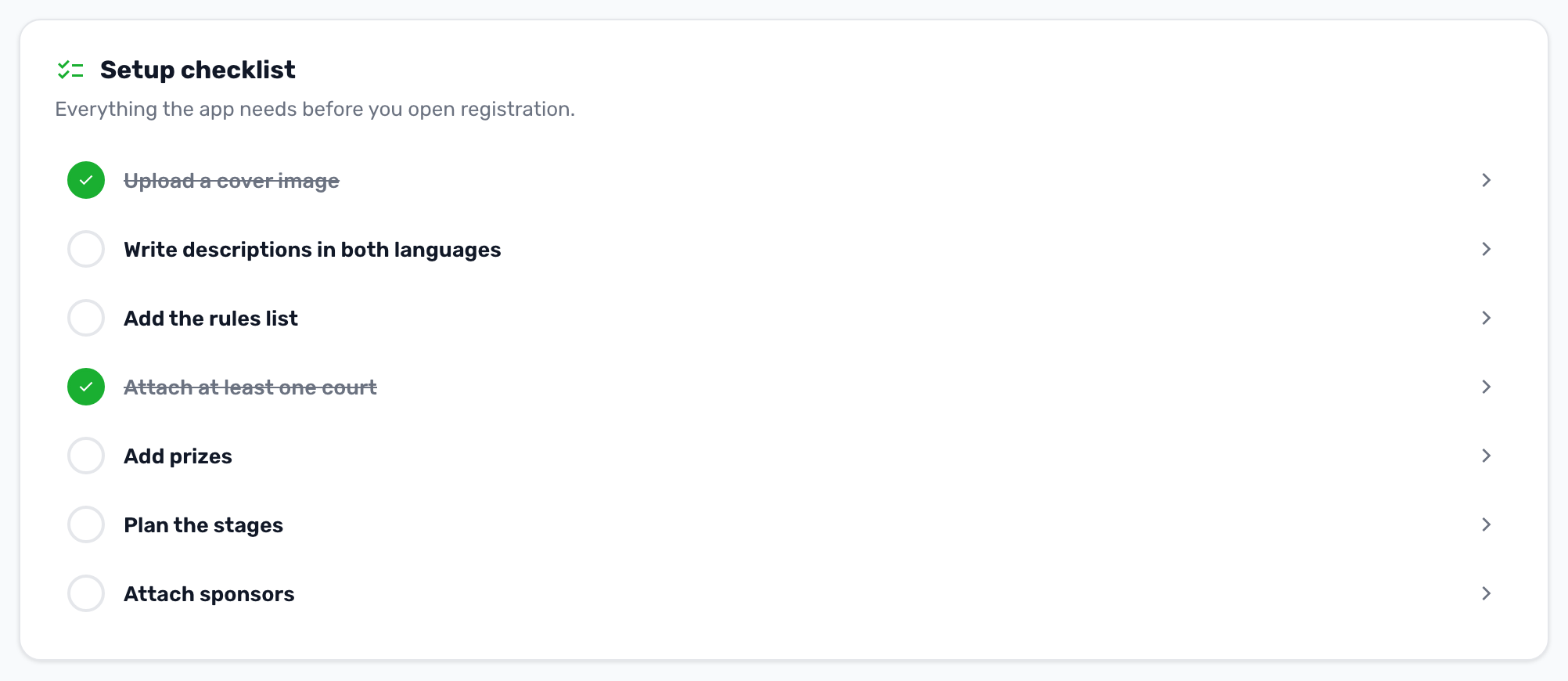
Under them, the Setup checklist lists what makes a tournament complete in the app: a cover image, descriptions in both languages, rules, at least one court, prizes, stages and sponsors. Each line opens the tab where you add it. The checklist is a guide: it does not stop you opening registration.
Schedule at a glance repeats the registration window, the tournament window, the daily hours and whether court blocking is on.
Details#
The Details tab holds the full form: everything from the wizard plus the status and the prizes note. Press Save changes at the bottom. A status picked here follows the same rules as the buttons in the header.