

Esta página aún no está traducida al español, así que estás leyendo la versión en inglés.
Manage organizers and freeze accounts
See every organizer of your club with their matches, and freeze an account that should stop running matches.
Official matches, Organizers lists everyone approved to run matches for your club. Accounts are never created here. An organizer comes from an approved application, and you cannot edit their details from the portal.
The list#
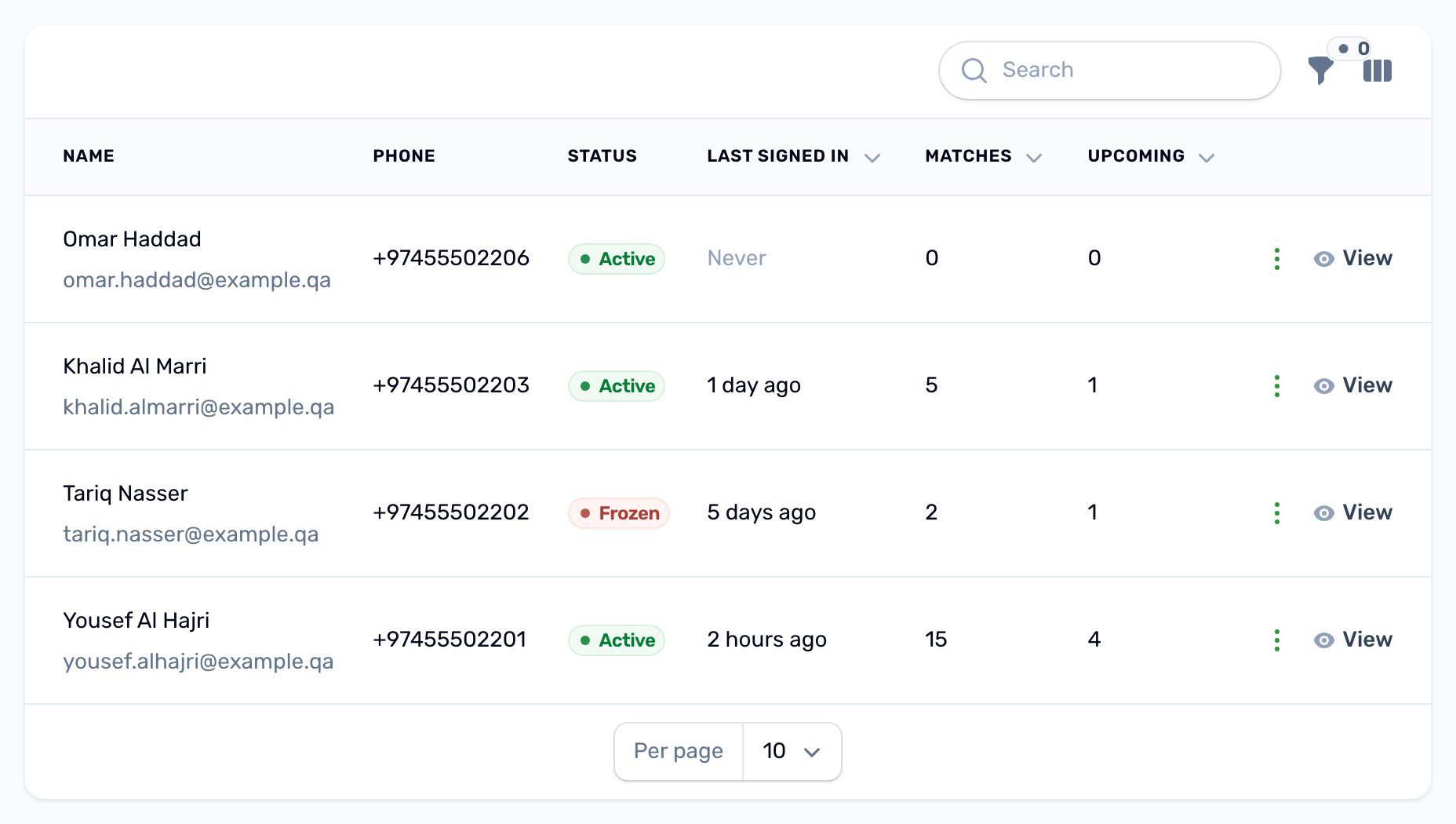
Each row shows the name and email, phone, status, when they last signed in, and two counts: Matches and Upcoming. WhatsApp, city and the date they were approved can be added with the columns button above the list. Search by name, email, phone or WhatsApp, and filter by status.
- Matches counts published matches, whatever happened to them. Drafts are the organizer's work in progress and are not counted.
- Upcoming counts published matches that have not started yet.
An organizer's page#
| Section | What it shows |
|---|---|
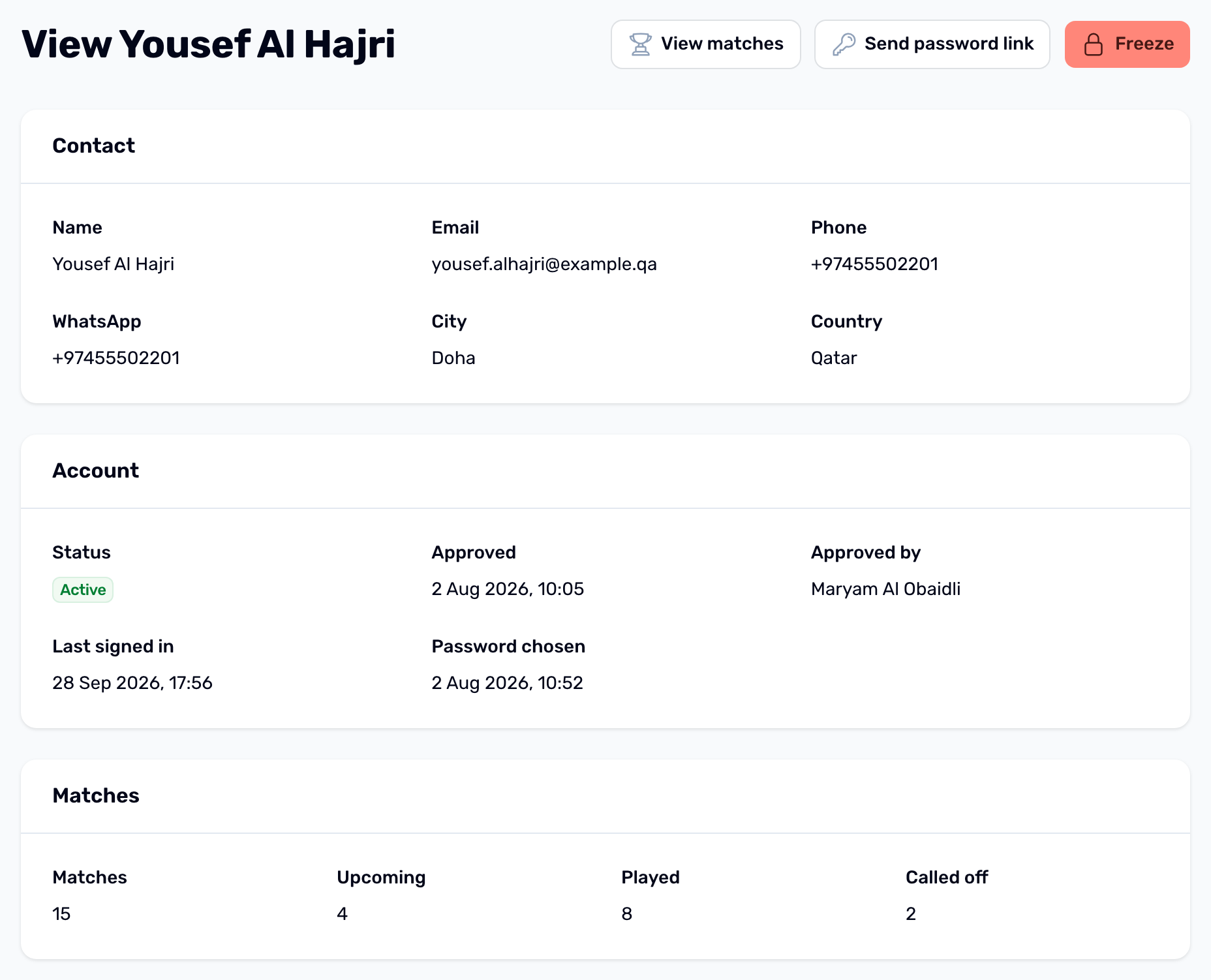
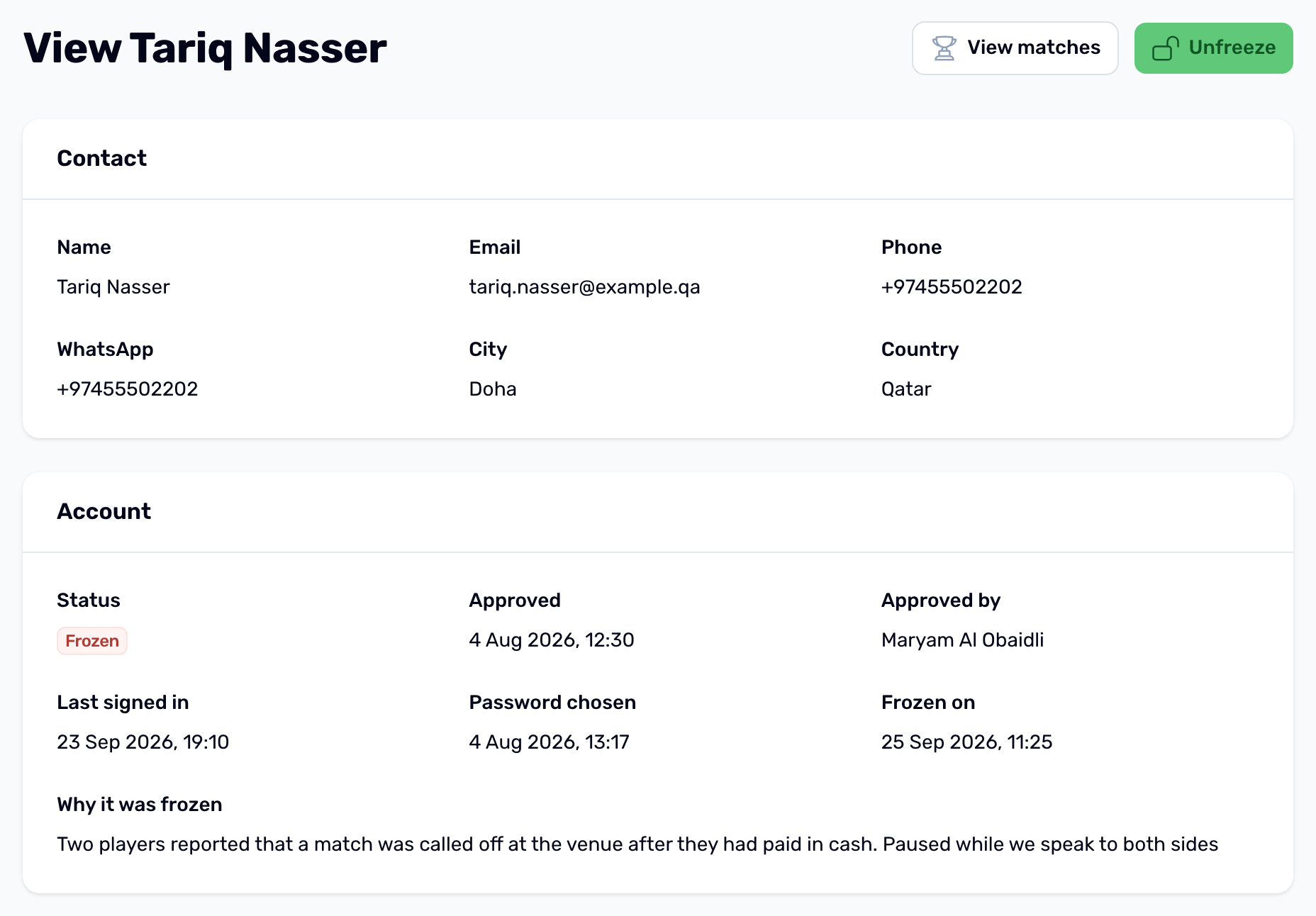
| Contact | Name, email, phone, WhatsApp, city and country. |
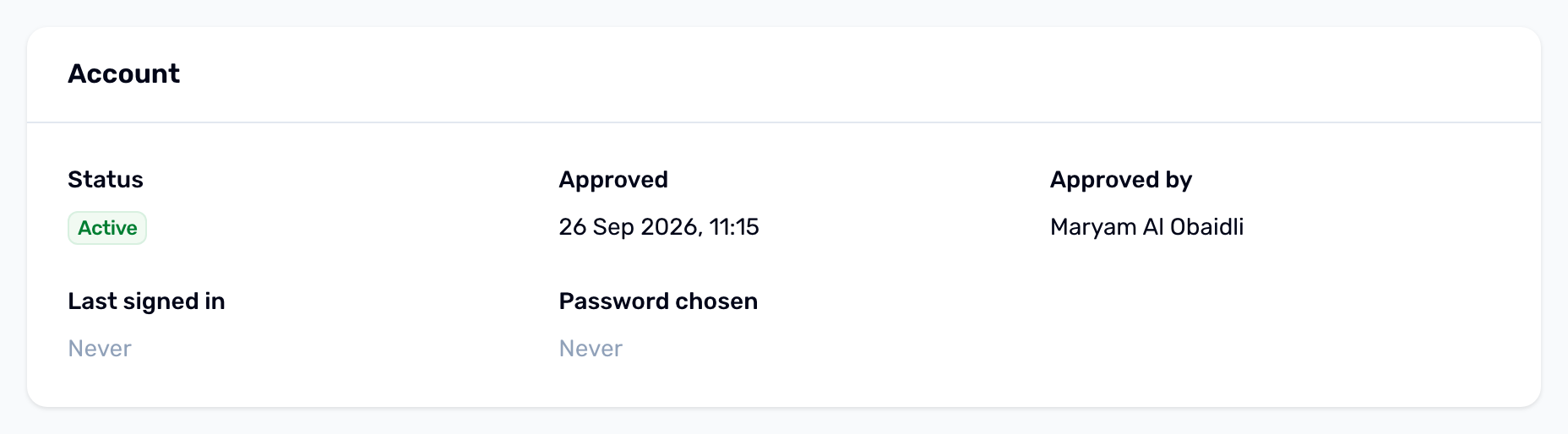
| Account | Status, Approved, Approved by, Last signed in and Password chosen. When frozen, also Frozen on and Why it was frozen. |
| Matches | Matches, Upcoming, Played and Called off. |
| Upcoming matches | The next ten published matches with venue, time and players out of places. |
Use View matches at the top of the page to open the Matches list filtered to this organizer.
Send a password link#
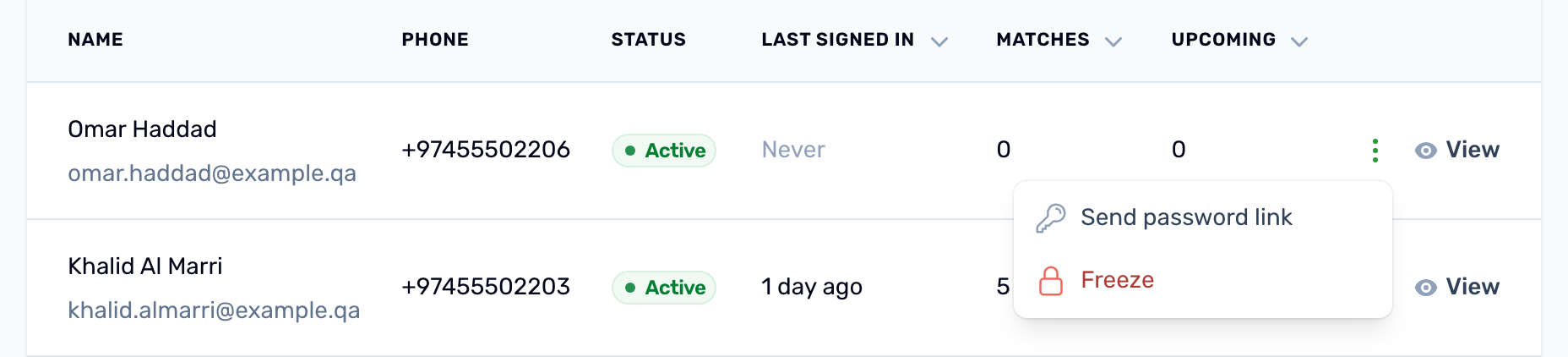
Use Send password link in the row menu (three dots) or at the top of the organizer page when an organizer lost their link or forgot their password. They get an email with a link to choose a password, valid for 60 minutes. An organizer who never set a password gets the email that reads Choose your organizer password. The others get a normal reset email.
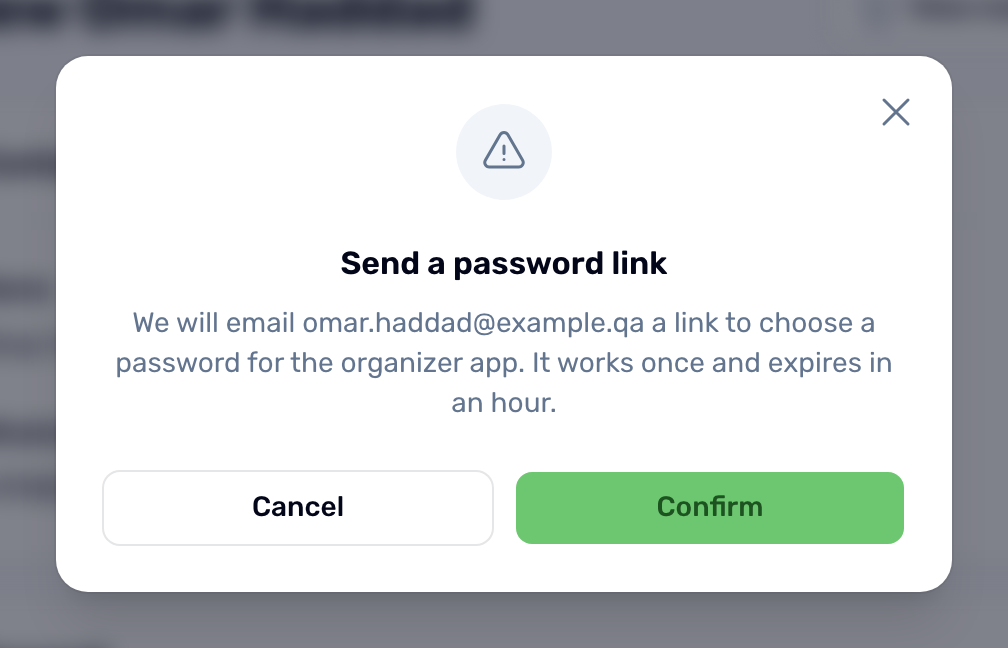
You can send up to 3 links to one organizer in an hour. Each one is written to the audit log with your name. Organizers can also ask for a link themselves with Forgot password on the organizer sign in.
Sport requests#
Organizers can only pick sports your club offers. When theirs is missing, they send a request from the app. Every admin who can change organizers gets an email, and the request waits under Sport requests, the button at the top of the Organizers list. A red number on it counts the requests still waiting.
-
Open Sport requests
The list shows the sport asked for, the organizer's note, who asked and when. It opens on the waiting requests. Use the status filter to see answered ones. -
Add the sport if you agree
Approving does not create the sport. Add it to your club's sports first, so the organizer can pick it. -
Approve or Decline
Add a note for the organizer if you like. They get a notification and an email with your answer.
Answering needs the same permission as freezing an organizer. A request is answered once.
Freeze an organizer#
-
Open Freeze
Choose Freeze in the row menu of the list, or at the top of the organizer's page. -
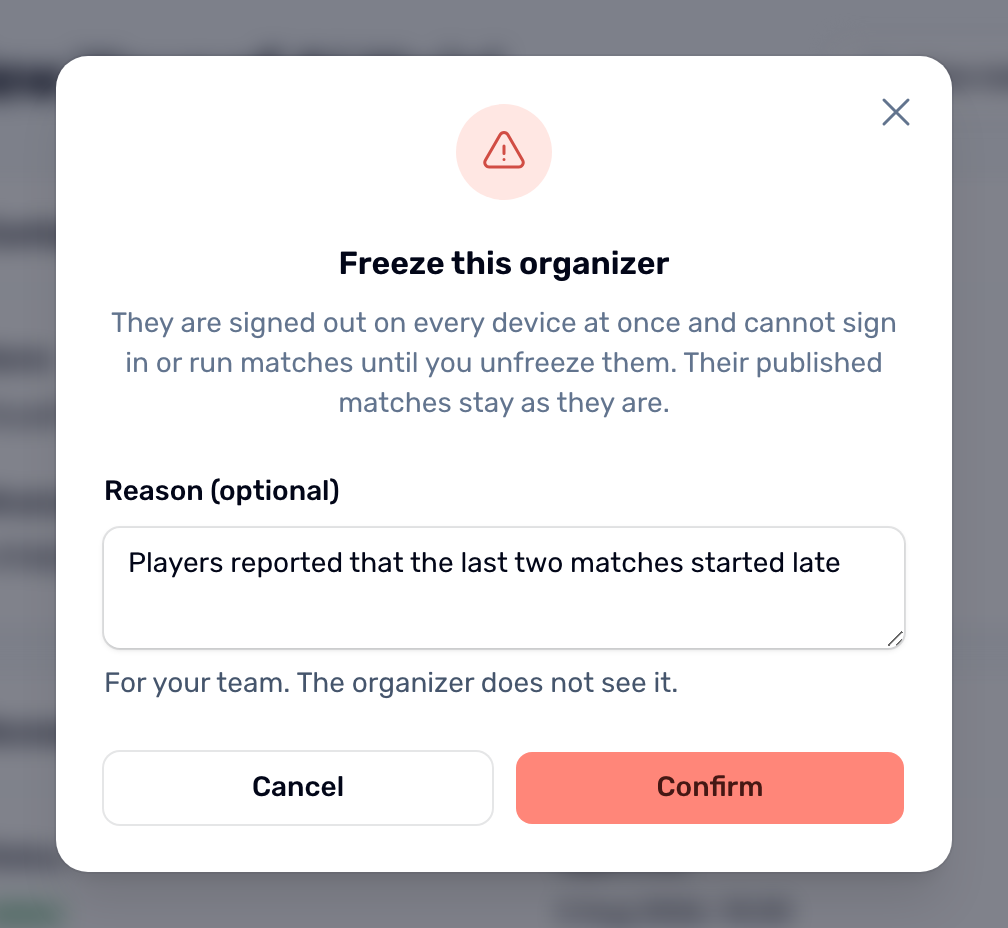
Add a reason if you want
The reason is optional and for your team only. The organizer does not see it. -
Confirm
The organizer is signed out on every device at once.
What freezing does#
- The organizer cannot sign in. The app tells them the account is not active.
- They cannot create, edit, publish or cancel matches, arrange lineups, record cash or enter results until you unfreeze them.
- Their published matches stay as they are. Players can still see and join them.
- If a frozen organizer's match should not go ahead, cancel it yourself from Matches. Players are refunded to their wallets.
Unfreeze#
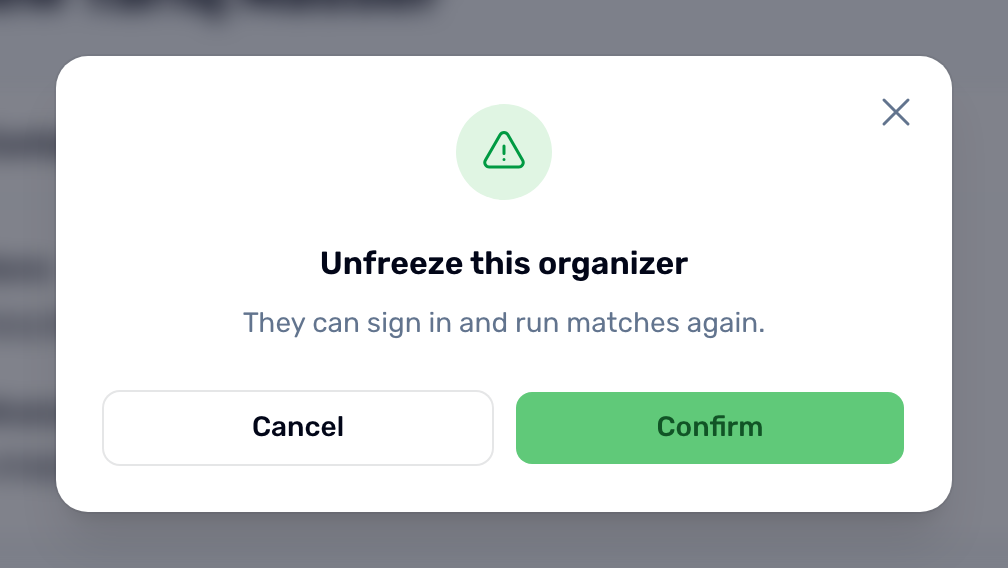
Choose Unfreeze and confirm. The organizer can sign in and run matches again. The freeze reason is cleared from the page but stays in the audit log.
| Status | Meaning |
|---|---|
| Active | Can sign in and run matches. |
| Frozen | Signed out and blocked until unfrozen. |